











Introduction
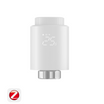
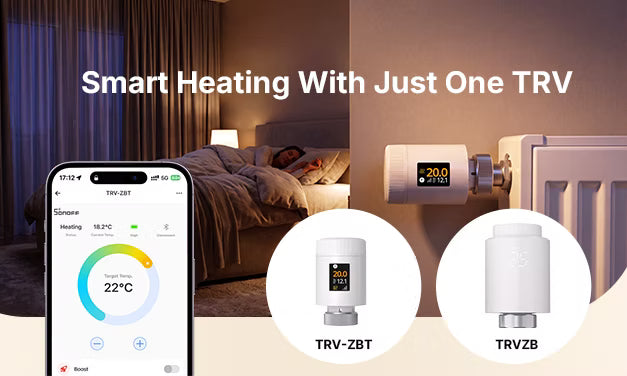
SONOFF Thermostatic Radiator Valve (TRV) is designed to be installed on the radiator valve for your home heating control. You can adjust the radiator valve from the App, control your home temperature, automate your heating system, save on energy costs, and maintain the perfect temperature in every room. Whether you’re just setting up your TRV or looking to maximize its potential, this guide covers everything you need to know, including FAQs to address common questions.

1. Get Started with SONOFF TRV
Installation Made Simple
- Unscrew your existing radiator valve and attach the SONOFF TRV securely. Check the Adapter Compatibility Guide.
- Follow the pairing instructions on the eWeLink app to connect it to your Zigbee hub.
- SmartThings Integration Guide
-
Installation & Pairing Video Tutorial
- Once connected, you can set target temperatures and schedules directly from the app.
📣 For detailed information on valve compatibility, installation, and pairing, please refer to the Quick Guide included in the package. It provides step-by-step instructions.
Key Features You’ll Love
- App & Voice Control: Adjust the temperature from anywhere using your smartphone or voice assistants like Alexa and Google Assistant.
- Open Window Detection: Save energy when a sudden temperature drop is detected.
- Valve Proportion Control: Fine-tune heat output by adjusting valve percentage (0%-100%).
- Group Control: Manage multiple TRVs in different rooms simultaneously.
- Smart Schedules: Set automated routines for temperature adjustments.
- Combine with Other Smart Devices: Supports external temperature & humidity sensors for more accurate control.
2. Screen Display and Introduction
|
Screen display |
Introduction |
|
|
Window opening detection function The device will automatically identify whether the window is open after you enter the app interface to enable the window opening detection function. When cold air is detected and the temperature drops more than 1.5 °C within 4.5 minutes, the window opening function will be enabled. Alongside the enabling of the function, the screen displays " Note: After the window opening function is enabled, the following operations will disable the window opening function: 1. Temperature setting operation on the App or device. 2. Temperature rises by more than 1.5℃ within 4.5 minutes. 3. No operation on the App or device within 30 minutes. |
|
|
Anti-calcification function The temperature control valve will perform a routine calcium removal operation at 12:00 am every Monday to prevent calcification of the valve. During the operation, the screen will display " |
|
|
Child lock function Press the "Middle button" for 3 seconds, then the screen will display " |
|
|
When heating is not needed in winter, turn the knob counterclockwise( Note: After the antifreeze function is enabled, when the room temperature is below 5 °C, the function will be enabled to prevent the radiator from being damaged by freezing. The function will be disabled when the room temperature exceeds 7 °C. |
|
|
Low battery The battery needs to be replaced with a new one within 1 week. |


 ) to the "

3. Understanding Three Modes
- Schedule Mode (Auto Mode): Create daily or weekly schedules for automated heating.
- Manual Mode: Set a custom temperature, overriding scheduled settings.
- Off Mode (Frost Protection): Keeps the radiator at a minimal temperature (default 5°C) to prevent freezing.
Learn more about the three operation modes: Automate Your Home Heating with SONOFF Thermostatic Radiator Valve
4. Error Codes, Problems and Solutions
|
Error codes |
Problems |
Solutions |
|
|
Abnormal temperature sensor |
Contact after-sales staff |
|
|
Slow valve operation |
Check installation status and heating valve |
|
|
Excessively wide adjustment range |
Check whether the temperature controller is fastened |
|
|
Excessively small adjustment range |
Check the heating valve |
|
|
Battery runs out |
Replace battery |
|
|
No valve detected |
Check whether the valve is installed |


FAQ
- 1. Can the TRV be used without a Zigbee hub?
- No, it requires a Zigbee hub to work, such as SONOFF ZBBridge-P, ZBBridge-U, NSPanel Pro, iHost, or integrated into Home Assistant via Zigbee2MQTT.
- 2. How does Open Window Detection work?
- When the TRV detects a sharp drop in temperature (e.g., a window is opened), it temporarily shuts off the radiator to save energy. Heating resumes once it detects the temperature rising.
- 3. How do I adjust the valve opening percentage?
- Open the eWeLink app, navigate to the TRV settings, and select your desired valve proportion. This lets you customize the heat output for specific rooms.
- 4. Can I control multiple TRVs at once?
- Yes, the group control feature allows you to adjust the temperature of all TRVs in your home with a single command.
- 5. What is the Frost Protection feature for?
- Frost Protection ensures that your radiator maintains a minimum temperature to prevent pipes from freezing, even when the heating is turned off. You can set the Frost Protection temperature in the App.
- 6. What should I do if the thermostatic radiator valve doesn't turn on after inserting the batteries?
- 1. Ensure the battery is a non-rechargeable 1.5V LR6 Alkaline AA Battery.
2. Ensure the battery is within the validity period.
3. Ensure the batteries are in good condition, with no signs of leaks, corrosion, or swelling.
4. Ensure the battery polarity is correct. - 7. How to judge whether the device is in auto mode or manual mode?
-
Auto mode: When "
 " is displayed on the screen, it means the auto mode is on.
-
Manual mode: When " " disappears from the screen, it means the manual mode is on.
- 8. How to switch between automatic mode and manual mode?
- Short-press the “Middle button” to switch between the two modes.
- 9. What should I do if the device screen display is reversed?
- Dismount the shell, and press the "Configuration key” for 3 seconds to change the screen display direction.
- 10. How to restore factory settings?
- Press the “Middle button” for a longer time and, at the same time, put the batteries in; then the screen displays “FA” and blinks for 3 seconds. After that, the device is reset to factory settings and is automatically restarted.
- Note: All previous settings will be removed after the device is reset to factory settings.
- 11. What do these Error codes mean and how to solve them?
-
F0: It means that the temperature sensor is abnormal. Please contact the after-sales personnel.
F1: It means slow valve operation. Please check the installation status and the heating valve.
F2: It means an excessively wide adjustment range. Please check whether the temperature controller is fastened.
F3: It means an excessively small adjustment range. Please check the heating valve.
F4: It means the battery has run out. Please replace the battery.
F5: It means no valve was detected. Please check whether the valve is installed.

16 comments
Joanna
Reply to Dominiek Swinkels: Hi, this action isn’t supported at the moment. We’ll pass your request on to our development team.
Joanna
Reply to Francesco: Thank you for your inquiry. Currently, in Auto mode, the temperature value shown in the middle of the app (Set At) reflects the temperature set in the schedules. Which temperature value would you prefer to be displayed?
Joanna
Reply to Diego: Puoi visitare https://sonoff.tech/pages/contact per fornirci maggiori informazioni e aiutarti a risolvere i problemi, ad esempio: quale gateway Zigbee stai utilizzando, quale sensore di temperatura e umidità stai utilizzando, nonché l’ID del dispositivo e il numero di versione del firmware, ecc.
Jan
Hello friend, I have a problem with the Sonoff trvzb head, it doesn’t want to read the temperature from the thermometer.
Dominiek Swinkels
Is it possible to Power of the heating (or circulation pump) when none of the TRV’s require heat and switch on the heating (or circulation pump) when one or more of the TRV’s require heat?
Leave a comment
All comments are moderated before being published.
This site is protected by hCaptcha and the hCaptcha Privacy Policy and Terms of Service apply.