




Product Guides

Home Assistant Temperature & Humidity Sensor Setup and Automation Guide 2026

Home Assistant Temperature & Humidity Sensor Setup and Automation Guide 2026

Introduction

A Zigbee temperature and humidity sensor can make Home Assistant automations far more useful in everyday life. Instead of checking room conditions manually, Home Assistant can react automatically — turning on a fan when a bedroom gets too warm, running a bathroom exhaust fan when humidity rises above a comfortable level, running a humidifier during dry weather, or monitoring conditions inside bedrooms, living rooms, greenhouses, wine cellars, server cabinets, and more.
In this guide, you'll learn how to add a Zigbee temperature and humidity sensor to Home Assistant using ZHA, create simple local automations, and pick the sensors covered in this guide.

What to Look for in a Home Assistant Temperature & Humidity Sensor?

Before choosing a sensor, it's worth considering a few practical factors that affect automation reliability, placement flexibility, and long-term usability. 
  • Communication Protocol: Most temperature and humidity sensors typically use Zigbee, Wi-Fi, Bluetooth, or Z‑Wave protocols.
        • Zigbee — Low power consumption, local control, fast response, and stable connectivity.
        •  Wi-Fi — Connect directly to the router with no hub required, but most rely on cloud control, which may increase latency and higher power consumption.
        • Bluetooth — Low power and affordable, but limited range and weaker Home Assistant integration compared to Zigbee.
        • Z‑Wave — Similar to Zigbee but typically more expensive and requires a separate Z‑Wave coordinator.
  • Temp & Humid Accuracy — Look for around ±0.2°C temperature accuracy and ±2% RH humidity accuracy for stable automations.
  • Battery life — Depending on the model and battery type, battery life can range from 2 to 4 years.
  • Waterproof rating —  IP65 protection is important for bathrooms, kitchens, greenhouses, and other humid environments. 
  • LCD display —  A built-in screen makes it easy to check temperature and humidity at a glance without opening Home Assistant. 
  • Refresh rate — Faster reporting intervals help Home Assistant automations respond more quickly to temperature or humidity changes.
  • External probe — Required for measuring liquid temperatures or monitoring enclosed spaces like refrigerators and fish tanks.
  • Mounting options — Magnetic mounts, adhesive backing, hanging loops, or desktop stands can make placement more flexible.  


Recommended Zigbee Temperature & Humidity Sensors for Home Assistant 

Zigbee strikes the best balance of battery life, local control, response speed, and Home Assistant integration — which is why it's the most popular protocol choice in the HA community for temperature and humidity monitoring.
The four sensors below cover the most common use cases: everyday indoor monitoring, humid or wet environments, multi-room deployments, and liquid or enclosed-space temperature tracking. All four work locally with Home Assistant via ZHA and Zigbee2MQTT, with no cloud account.

Quick Overview:  

SNZB-02D

SNZB-02WD

SNZB-02P

SNZB-02LD

Price

$15.90

$19.90

$16.90

$19.90

Display

2.5" LCD

2.2" LCD

2.2" LCD

Temperature

Humidity

Temp Range

-10~60℃

-20~60℃

-10~60°C

-10~60℃

Humidity Range

5~95%RH

0~100%RH

5~95%RH

Accuracy

±0.2°C / ±2% RH

±0.2°C / ±2% RH

±0.2°C / ±2% RH

±0.2°C / ±2% RH

Configurable Refresh Rate

5s

5s

5s

5s

Waterproof

IP65

IP65 (body)

External probe

1.5 m

Battery Life

Up to 2 years

CR2450

Up to 2 years

CR2477 

Up to 4 Years

CR2477 

Up to 2 years

CR2477 

Mounting

Stand

Magnetic

Hanging

Magnetic

Screw

Adhesive

Magnetic

Hanging

Magnetic

Best For

General indoor use

Humid & wet environments

Multi-room deployment

Refrigerators & liquids

Product Highlights:

SNZB-02D

An all-round indoor sensor with a 2.5" LCD and ±0.2°C accuracy.  Includes both a desktop stand and magnetic mounting for flexible placement around the home. Best for bedrooms, living rooms, offices, nurseries, incubators, humidors, wine cellars, instruments, reptile terrariums, etc.

SONOFF SNZB-02D Zigbee LCD Smart Temperature Humidity Sensor

SONOFF SNZB-02D Zigbee LCD Smart Temperature Humidity Sensor

$15.90

【Large LCD Display】Features a clear, easy-to-read LCD screen that dynamically shows real-time temperature and humidity. Intuitive icons also indicate room conditions and battery status at a glance...

View Product

SNZB-02WD 

The IP65-rated body and waterproof breathable membrane make this the right pick for anywhere moisture is a regular factor. Magnetic or hanging mount works where adhesive won't hold. Best for bathrooms, greenhouses, laundry rooms, under the eaves, ecological tanks — any environment where moisture, condensation, or humidity is a regular factor.

SONOFF SNZB-02WD IP65 Zigbee LCD Smart Temperature Humidity Sensor

SONOFF SNZB-02WD IP65 Zigbee LCD Smart Temperature Humidity Sensor

$19.90

【Advanced Waterproof Design】Encased in IP65-rated housing with an internal waterproof breathable membrane, ensuring reliable operation even in humid or misty conditions...

View Product

SNZB-02P 

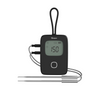
No screen, but the same ±0.2°C accuracy — and up to 4 years of battery life. Compact enough for discreet multi-room deployment. Best for multi-room deployments where battery replacement and aesthetics matter.

SONOFF Zigbee Temperature and Humidity Sensor | SNZB-02P

SONOFF Zigbee Temperature and Humidity Sensor | SNZB-02P

$16.90

【Long-Lasting Battery Life】Powered by a CR2477 coin cell battery, offering up to 4 years of battery life under typical use conditions (based on SONOFF lab data; actual performance may vary)...

View Product

SNZB-02LD 

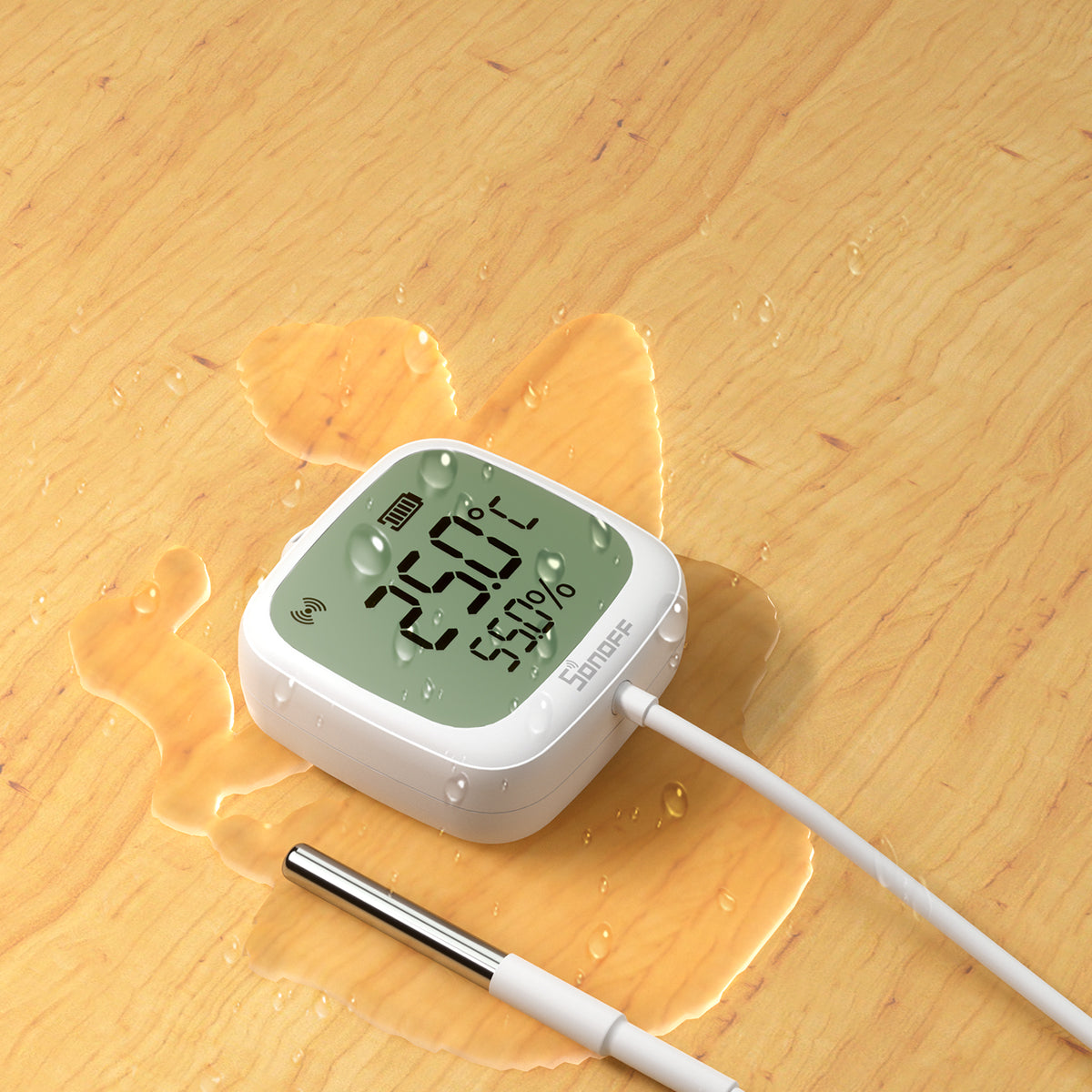
The only probe model in this lineup. The 1.5 m waterproof probe reaches into liquids and enclosed spaces that the sensor body can't fit into. Best for refrigerators, fish tanks, pools, aquariums, and water pipes.
Note: temperature only — no humidity sensor. 
SONOFF SNZB-02LD IP65 Zigbee LCD Smart Thermometer (Probe Version)

SONOFF SNZB-02LD IP65 Zigbee LCD Smart Thermometer (Probe Version)

$19.90

【Probe Temperature Measurement】The 1.5m probe enables accurate temperature readings in liquids or enclosed spaces, reaching areas beyond the range of standard sensors...

View Product


Features Available in Home Assistant (ZHA & Zigbee2MQTT)

All four sensors support local integration with Home Assistant through both ZHA and Zigbee2MQTT, exposing temperature data, battery status, historical records, and automation entities without requiring any cloud service.  

Feature in Home Assistant

SNZB-02D

SNZB-02WD

SNZB-02P

SNZB-02LD

Integration

ZHA / Z2M

ZHA / Z2M

ZHA / Z2M

ZHA / Z2M

Temperature

Humidity

Temperature Offset

Humidity Offset

Battery Level

Historical Records

Automations

OTA Firmware Updates


How to Add a Zigbee Temperature and Humidity Sensor to Home Assistant via ZHA & Zigbee2MQTT?

There are two main ways to add a Zigbee temperature and humidity sensor to Home Assistant — ZHA (Zigbee Home Automation) and Zigbee2MQTT (Z2M). Both run locally, no cloud required. 

What you'll need:

👉 New to Zigbee dongles? See these guides:

Via ZHA (Recommended for Beginners) 

ZHA is built into Home Assistant — no extra software needed, easy to set up.
1. Configure ZHA in Home Assistant:
  • Go to Settings → Devices & Services. 
  • Click "Add Integration" and search for Zigbee Home Automation (ZHA).
  • Follow the wizard to initialize your Zigbee network
2. Pair Temperature and Humidity Sensor:
  • Go to Settings → Devices & Services
  • Click ZHA (Zigbee Home Automation) → Add devices
  • ZHA will begin searching for nearby Zigbee devices.

  • Put the temperature and humidity sensor into pairing mode (usually hold the button on the sensor until the LED flashes)
  • The temperature and humidity sensor should appear in the ZHA pairing dialog within a few seconds.
  • Once discovered, you can rename the device (e.g., "Living Room Sensor")  and assign it to an Area. 
🔔Tip: Keep the sensor within 2–3 meters of the coordinator during pairing. If nothing appears after 30 seconds, press the button briefly to wake it and try again. 
3. Confirm Device in Home Assistant: 
  • Go to Settings > Devices & Services > ZHA > Devices.
  • Find the sensor in the ZHA device list.

On the device page, you should now see several entities and diagnostic details, typical exposed entities include:

  • Temperature 
  • Humidity
  • Configuration — comfort thresholds (comfort humidity max/min, comfort temperature max/min), calibration offsets (humidity/temperature offset), display unit (°C/°F)
  • Activity — a real-time log of state changes and configuration updates.
  • Diagnostic — battery level, signal strength (LQI/RSSI), Identify button
  • Automation, scene, and script shortcuts for quickly building local automations inside Home Assistant

Via Zigbee2MQTT (Recommended for Advanced Users)

Z2M offers broader device compatibility and more advanced control, but requires additional setup.
1. Install Mosquitto MQTT broker and Zigbee2MQTT in Home Assistant
2. Enable Permit Join in the Z2M web interface
3. Put the sensor into pairing mode — it will appear in Z2M and automatically sync to Home Assistant
 📖 Full Zigbee2MQTT installation and configuration guide: How Zigbee Devices Work with Home Assistant via Zigbee2MQTT

Test Temperature and Humidity Updates 

After adding the sensor to Home Assistant, verify it reports data correctly.  Move the sensor to an environment where both temperature and humidity are likely to change noticeably, such as:
  • Room with the air conditioner running
  • A bathroom after a hot shower
  • Near a humidifier, near a heater or radiator (avoid direct contact)
  • A laundry room during drying cycles, or a kitchen while cooking
  • Within a short time, you should see the temperature and humidity readings gradually update on the Home Assistant entities. 
You can monitor the values in real time from the device page or by adding the entities to a Home Assistant dashboard. 

Historical Data in Home Assistant

Once paired, Home Assistant logs every reading automatically. Click any entity to view temperature or humidity history by hour, day, week, month, or year — all stored locally.
Click on either the Temperature or Humidity entity to open its detail page. You'll see a live reading at the top and a history graph below, defaulting to the last 24 hours of data in 5-minute aggregated intervals.


5 Practical Home Assistant Temperature & Humidity Automation Ideas

Once your Zigbee temperature and humidity sensor is connected to Home Assistant, you can build a wide range of practical local automations for comfort, ventilation, energy efficiency, and environmental monitoring.
Here are some of the most popular ideas:

Fan or AC control by temperature

Automatically turn on a fan or air conditioner when a room gets too warm, and turn it off once the temperature drops back to a comfortable level.

Bathroom exhaust fan by humidity

Trigger the exhaust fan when humidity spikes after a shower, and switch it off once levels return to normal. No timers needed — the sensor does the work.

Humidifier or dehumidifier control

Run a humidifier during dry winter months when humidity drops below a set threshold, or a dehumidifier in basements and storage rooms when it climbs too high.

Fridge or freezer monitoring

Using a probe sensor placed inside a freezer or refrigerator, you can receive an immediate push notification when the temperature rises above a safe threshold — useful for catching a door left open or a failing compressor.

Nursery or bedroom alerts 

Send a phone notification when a nursery gets too hot, too cold, or too dry — useful for keeping sleeping conditions safe and comfortable —especially during summer heatwaves or dry winter months.
Other popular use cases include greenhouse and wine cellar monitoring, and controlling smart radiator valves (TRVs) based on real-time room temperature.
All of these automations run locally inside Home Assistant, responding automatically to real-time conditions without relying on cloud services.


Tutorial: Temperature-Based Fan Control in Home Assistant

 In this section, we'll walk through one of the most common Home Assistant automations: automatically turning a fan on or off based on room temperature. It's beginner-friendly, takes about 5 minutes to set up, and works in any room.  Best for bedrooms, home offices, living rooms, dorm rooms, and small workshops. 
The Logic: 
✅ If the room temperature rises above your set threshold → automatically turns the fan ON. 
✅ If the room temperature drops back to a comfortable threshold → automatically turns the fan OFF 

Automation 1: Temperature is Too High → Turn Fan ON

Step 1: Create a new automation
● Go to Settings → Automations & Scenes.
● Click + Create Automation → Create new automation.
Step 2: Set the Trigger
● Click Add Trigger → select Entity → select Numeric state.
● Select the Temperature entity
● Lower limit: select Fixed number
● Upper limit: select Fixed number
● Set Above to 27 (°C).  (This means the automation will trigger when the room temperature rises above 27°C.) Adjust this to your comfort preference.
● Set For to 0:05:00.
📍Tips: The For field prevents the automation from firing on a brief spike. If someone opens an oven nearby or sunlight hits the sensor, the temperature might jump momentarily. A 5-minute duration filter ensures the room is genuinely warm before the fan turns on.
Step 3: Set the Action
● Click Add Action → select Device.  
● Device: choose the switch controlling the fan.
● Action: Turn on the Fan Switch
Step 4:  Save and Name the automation  
● Click Save, and name the automation like "Bedroom Fan Auto On"
● The first automation is now complete.

Automation 2: Turn Fan OFF When Temperature Returns to Normal

Step 1: Create a second automation
● Go to Settings → Automations & Scenes → + Create Automation → Create new automation.
Step 2: Set the Trigger
● Click Add Trigger → select Entity → select Numeric state.
● Select the Temperature entity
● Lower limit: select Fixed number
● Upper limit: select Fixed number
● Set Below to 24 (°C).  (This means the automation will trigger once the room temperature drops below 24°C.) Adjust this to your comfort preference.
● Set For to 0:05:00. (This prevents the fan from rapidly switching on and off if the temperature fluctuates slightly. )
Step 3: Set the Action
● Click Add Action → select Device.  
● Device: choose the switch controlling the fan.
● Action: Turn off the Fan Switch.
Step 4:  Save and Name the automation  
● Click Save, and name the automation like "Bedroom Fan Auto Off".
● Your automatic temperature-based fan control automation is now active.

*Optional: Use Humidity Instead of Temperature
You can build the same automation logic using humidity instead of temperature. For example:
● Humidity above 65% → Turn on the fan 
● Humidity below 55% → Turn off the fan 
This works especially well in bathrooms, laundry rooms, basements, and kitchens.  
Because the sensor reports both temperature and humidity, you can easily experiment with either approach depending on your room and climate needs.


Conclusion

A Zigbee temperature and humidity sensor is one of the most practical additions to a Home Assistant setup. With local control, low power consumption, and reliable real-time reporting, these sensors make it easy to build smarter climate automations throughout the home.
Whether you want to automate a bathroom exhaust fan, monitor a greenhouse, track freezer temperatures, or improve room-based HVAC control, Home Assistant can respond automatically to environmental changes without relying on cloud services.
By choosing the right sensor for your environment — standard indoor monitoring, humid spaces, multi-room deployment, or probe-based temperature tracking — you can build a more responsive and reliable smart home with minimal setup.


FAQs

Q1: Do Zigbee temperature and humidity sensors work locally in Home Assistant?

Yes. When connected through ZHA or Zigbee2MQTT, Zigbee temperature and humidity sensors work locally inside Home Assistant without relying on cloud services.
This means:
●  Automations continue working even if the internet is down 
●  Response times are faster 
●  Reliability is generally better than cloud-dependent setups

Q2: Why is my Home Assistant humidity sensor not updating instantly?

This behavior is normal and helps extend battery life significantly while keeping automations reliable. Most Zigbee temperature and humidity sensors do not report data continuously every second. To preserve battery life, the sensor usually sends updates when:
● Temperature changes beyond a certain threshold 
● Humidity changes noticeably 
● A reporting interval is reached

Q3: Where should I place a temperature and humidity sensor for accurate readings?

For best accuracy, avoid placing the sensor:
●  In direct sunlight 
●  Near heaters or radiators 
●  Directly beside air conditioners 
●  Near humidifiers 
●  In direct airflow from fans 
A central location at normal room height usually provides the most representative readings. Proper placement is especially important for reliable Home Assistant automations.

Q4: What automations can I build with a Home Assistant temperature and humidity sensor?

Some of the most popular Home Assistant automations include:
●  Fan or AC control based on room temperature 
●  Humidifier or dehumidifier automation 
●  Bathroom ventilation control 
●  Smart radiator valve (TRV) automation 
●  Mold prevention alerts 
●  Greenhouse monitoring 
●  Freezer temperature notifications 
●  Nursery climate monitoring
Most automations can be created directly from the Home Assistant UI without YAML.

Q5: Can I use Home Assistant temperature sensors for HVAC or radiator control?

Yes. Many Home Assistant users combine temperature sensors with:
● Smart thermostats 
● Zigbee TRVs (thermostatic radiator valves) 
● Fans 
● Air conditioners 
● Heaters 
This allows Home Assistant to create room-based climate automations using real-time temperature data instead of relying only on built-in thermostat sensors.
External room sensors are especially useful because they often provide more accurate room-wide readings than sensors built into radiators or HVAC equipment.

Q6: How do I add a Zigbee temperature and humidity sensor to Home Assistant?

● Go to Settings → Devices & Services → Zigbee Home Automation → Add Device
● Put your sensor into pairing mode by holding its button for 5 seconds. The sensor will appear in the ZHA pairing dialog within 10–30 seconds. 
● Once confirmed, ZHA automatically creates all the relevant entities — temperature, humidity, battery, and configuration — on the device page.
For more details, please view the above setup guide
Q7: What entities does a Zigbee temperature and humidity sensor expose in Home Assistant via ZHA?

It depends on the model, but a sensor like the SONOFF SNZB-02D exposes: a temperature sensor entity, a humidity sensor entity, a battery level entity, an identify button, comfort threshold configuration entities (max/min for both temperature and humidity), and calibration offset fields for temperature and humidity. 


Reading next

Best Zigbee Door & Window Sensors for Home Assistant: Setup and Automation Guide

Leave a comment

All comments are moderated before being published.

This site is protected by hCaptcha and the hCaptcha Privacy Policy and Terms of Service apply.