









1. Configurazione Locale di ZBBridge-U
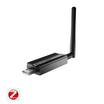
Per gestire ZBBridge-U localmente, accendi il dispositivo e collegalo al tuo router di casa tramite un cavo Ethernet. Assicurati che ZBBridge-U e Home Assistant siano sulla stessa rete locale.
Apri il tuo browser preferito e visita il pannello web locale all'indirizzo: http://zbbridgeu.local/. In alternativa, puoi accedere al pannello utilizzando l'indirizzo IP assegnato dal tuo router.
L'interfaccia web locale è completamente responsive e ottimizzata per diversi dispositivi, rendendo facile l'accesso e la gestione da smartphone o tablet.
Quando accedi all'interfaccia per la prima volta, verrai guidato nella configurazione del fuso orario e nella creazione di una password per i futuri accessi.

Panoramica del Portale ZBBridge-U
Dopo aver effettuato l'accesso e completato la guida di configurazione, verrai indirizzato alla pagina Home. Sul lato sinistro, il menu principale offre un accesso rapido a tutte le funzionalità e impostazioni chiave. La pagina Home evidenzia le funzioni principali e mostra lo stato di sincronizzazione del dispositivo.
I dispositivi sono raggruppati in quattro categorie in base al modo in cui sono stati aggiunti:
- Zigbee
- eWeLink-Remote
- eWeLink Wi-Fi
- Home Assistant
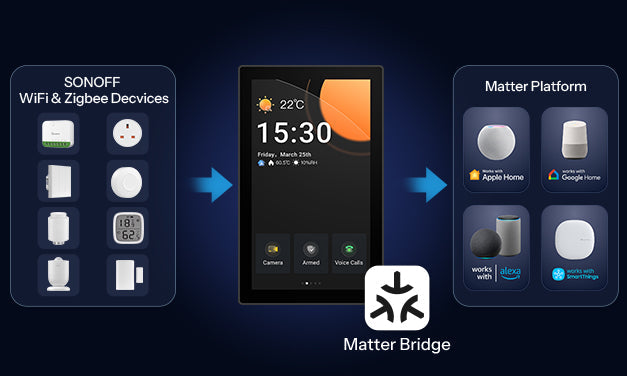
Per ogni categoria, puoi vedere il numero totale di dispositivi, quanti sono online e quanti sono stati sincronizzati tramite il bridge Matter.

2. Configura il Broker MQTT in Home Assistant
Assicurati di avere Home Assistant in esecuzione su un server (mini PC, Raspberry Pi, Home Assistant Green, ecc.). Abilita la configurazione MQTT in Home Assistant e installa il componente aggiuntivo Mosquitto Broker.
Crea un nome utente e una password nella configurazione di Mosquitto Broker. Questi saranno utilizzati per collegare ZBBridge-U a Home Assistant.


3. Aggiungi Dispositivi Zigbee a ZBBridge-U
Nella pagina Home, seleziona Aggiungi Dispositivi → Dispositivi Zigbee per avviare la modalità di associazione. In alternativa, accedi alla pagina Zigbee dal menu laterale.

Una volta abilitata la modalità di associazione, rimane attiva per 180 secondi. Metti i tuoi dispositivi Zigbee in modalità di associazione e posizionali vicino a ZBBridge-U per un'associazione stabile. Dopo che i dispositivi sono stati aggiunti, gestiscili dalla lista dispositivi.
Quando il router collegato a ZBBridge-U ha accesso a Internet, sono supportati gli aggiornamenti firmware OTA per i dispositivi SONOFF Zigbee.

4. Sincronizza i Dispositivi con Home Assistant
Vai alla pagina Home Assistant nell'interfaccia di ZBBridge-U e seleziona Sincronizza i dispositivi Zigbee secondari con Home Assistant. Poi configura la connessione al Broker MQTT.

Impostazioni Broker MQTT
- Scansiona automaticamente l'indirizzo IP di Home Assistant o inseriscilo manualmente
- Porta: Inserisci la porta MQTT normale configurata in Mosquitto Broker
- Nome utente e password: Usa le credenziali create in Mosquitto Broker
- Crittografia: Impostata su Nessuna per default, o regola in base alla configurazione del tuo broker
Abilita MQTT e salva le impostazioni. 
Una volta completata la configurazione, seleziona i dispositivi che vuoi sincronizzare dalla lista.
I dispositivi sincronizzati appariranno quindi in Home Assistant → configurazione MQTT.


Alternativa: Completa la Configurazione tramite l'App eWeLink
- Aggiungi ZBBridge-U all'app eWeLink e associa i dispositivi Zigbee secondari
- Configura il Broker MQTT in Home Assistant e crea nome utente/password
- In eWeLink, vai su ZBBridge-U → Impostazioni dispositivo → Home Assistant → Sincronizza dispositivi Zigbee secondari con Home Assistant, configura le impostazioni MQTT come descritto prima, quindi abilita MQTT.

- Seleziona i dispositivi che vuoi sincronizzare. I dispositivi sincronizzati appariranno nella configurazione MQTT di Home Assistant.



Commenta
Nota che i commenti devono essere approvati prima di essere pubblicati.
Questo sito è protetto da hCaptcha e applica le Norme sulla privacy e i Termini di servizio di hCaptcha.