









Bevezetés
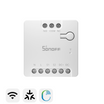
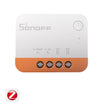
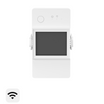
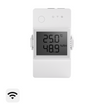
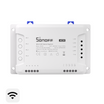
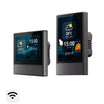
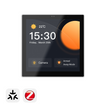
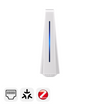
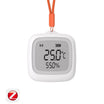
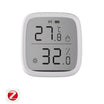
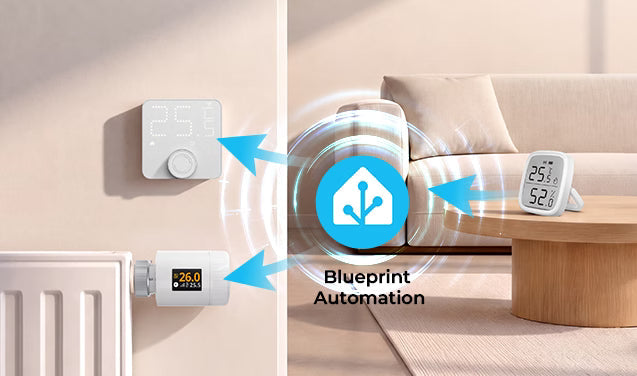
Ez az útmutató bemutatja, hogyan használhatsz távoli hőmérséklet-érzékelőt SONOFF termosztátokkal a Home Assistantban egy Home Assistant-séma segítségével. A különböző termosztátokhoz különböző sémák tartoznak, ezért ügyelj arra, hogy az eszközödnek megfelelő sémát használd.
Az alábbi lépésekben a TP-WGZBA termosztát példáján mutatjuk be, hogyan állíthatsz be külső hőmérséklet-érzékelőt egy séma használatával.
A menüpontok nevei kissé eltérhetnek a Home Assistant egyes verzióiban. Kövesd az aktuális Home Assistant-felületeden megjelenő lehetőségeket.
|
Eszköz |
Séma URL-je |
|
|
|
|
|
|
👉 Tipp: Ha inkább manuálisan szeretnéd beállítani a külső hőmérséklet-érzékelőt a Home Assistantban, kövesd lépésről lépésre a ZHA és a Zigbee2MQTT (Z2M) útmutatóját: SONOFF TRV beállítása külső hőmérséklet-érzékelővel manuálisan
Kezdés előtt
Kezdés előtt győződj meg arról, hogy:
- A távoli hőmérséklet-érzékelő már hozzá lett adva a Home Assistanthoz, és megfelelően jeleníti meg a hőmérsékletet.
- A termosztát vagy a termosztátpanel sikeresen hozzá lett adva.
- Az eszköz online van.
1. lépés: A séma importálása
- Nyisd meg a Home Assistantot.
- Lépj a Beállítások → Automatizálások és jelenetek → Sémák menübe.
- Kattints a jobb alsó sarokban az Séma importálása gombra.

4. Illeszd be a megfelelő séma URL-jét a Séma címe mezőbe.
- Az alábbi URL a SONOFF TP-WGZBA termosztát sémája:

5. A séma sikeres importálása után megjelenik a sémák listájában.

Megjegyzések:
- Ha a séma nem importálható, ellenőrizd, hogy a séma URL-je teljes-e, és megfelelően lett-e kimásolva.
- Ha az importálás után nem jelenik meg a séma, frissítsd az oldalt, vagy indítsd újra a Home Assistantot.
2. lépés: Automatizálás létrehozása a sémából
- Lépj a Beállítások → Automatizálások és jelenetek → Automatizálások menübe.
- Kattints a + Automatizálás létrehozása gombra.
- Válaszd ki az imént importált távoli hőmérséklet-érzékelő sémáját.

4. Válassza ki a termosztáteszközt, például a TP-WGZBA termosztátpanelt.
5. Válassza ki a megfelelő külső hőmérséklet-érzékelőt távoli hőmérsékletforrásként.

6. Adjon nevet az automatizálásnak, például: Távoli hőmérséklet szinkronizálása a TP-WGZBA eszközzel.
7. Kattintson a Mentés gombra.
8. Győződjön meg arról, hogy az automatizálás engedélyezve van.

Megjegyzések:
- A termosztáteszközt és a hőmérséklet-érzékelőt már hozzá kell adni a Home Assistanthez, és online állapotban kell maradniuk.
- Ha nem találja a termosztátot vagy a hőmérséklet-érzékelőt, ellenőrizze, hogy az eszköz megfelelően lett-e hozzáadva.
- Az automatizálás mentése után győződjön meg arról, hogy az állapota engedélyezve.
3. lépés: A külső hőmérséklet-érzékelő engedélyezése az eszközbeállításokban
Az automatizálás létrehozása után a termosztát eszközén is engedélyeznie kell a külső hőmérsékletforrást.
1. módszer: ZHA
- Keresse meg a SONOFF TP-WGZBA termosztát eszközt.
- Keresse meg a külső hőmérséklet-érzékelő kapcsolót, és kapcsolja be.

2. módszer: Zigbee2MQTT
- Keresse meg a SONOFF TP-WGZBA termosztát eszközt.
- Nyissa meg az eszközbeállítások oldalát, majd keresse meg és válassza ki a külső hőmérséklet-érzékelő lehetőséget.

Megjegyzések:
- A ZHA használatakor engedélyezze a külső hőmérsékletforrás kapcsolót.
- A Zigbee2MQTT használatakor válassza a külső hőmérsékletforrás lehetőséget.
- Ha az eszköz offline állapotban van, alacsony az akkumulátortöltöttsége vagy gyenge a jele, előfordulhat, hogy a beállítás nem lép azonnal érvénybe.
- Ha nem találja a külső hőmérséklet-érzékelő opciót, ellenőrizze, hogy az Ön ZHA- vagy Zigbee2MQTT-verziója és eszközmodellje támogatja-e.
4. lépés: A beállítás működésének ellenőrzése
A fenti lépések elvégzése után a konfigurációt a következőképpen ellenőrizheti:
- Győződjön meg arról, hogy az automatizálás létre lett hozva és engedélyezve van.
- Győződjön meg arról, hogy a külső hőmérsékletforrás engedélyezve van vagy ki van választva az eszköz beállításaiban.
- Módosítsa a távoli hőmérséklet-érzékelő által jelentett hőmérsékletet, majd ellenőrizze, hogy az érték frissül-e a Home Assistantban vagy az eszközön.
- Ellenőrizze, hogy a termosztát a távoli hőmérsékletforrásból származó hőmérsékletet használja-e a hőmérséklet szabályozásához.
- Ellenőrizze, hogy a hőmérséklet megfelelően jelenik-e meg mind az eszközön, mind a Home Assistantban.

Hagyjon megjegyzést
Minden hozzászólást moderálnak a közzététel előtt.
Ezt a webhelyet a hCaptcha rendszer védi, és a hCaptcha adatvédelmi szabályzata, valamint szolgáltatási feltételei vonatkoznak rá.