








Bevezetés
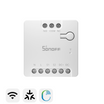
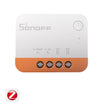
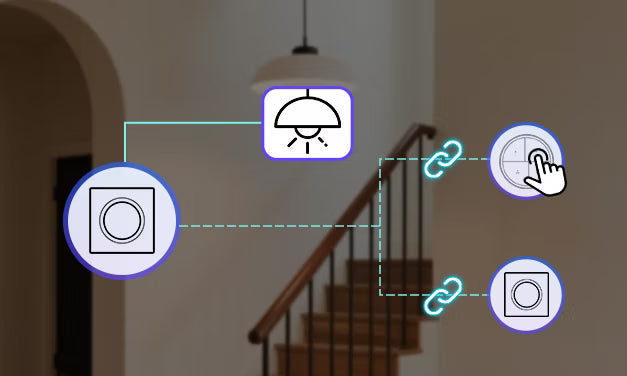
Ha SONOFF Fusion sorozatú kapcsolót használ, felmerülhet Önben, hogyan valósítható meg a kétirányú vezérlés. Ez az útmutató intelligens kétirányú vezérlési megoldásokat mutat be a különböző kommunikációs protokollokat használó Fusion kapcsolókhoz. Az intelligens jelenetek használatával ezek a megoldások további vezetékezés nélkül teszik lehetővé a több helyről történő vezérlést — rugalmasan, kényelmesen és rendkívül praktikus módon.
1. megoldás — Intelligens jelenetkapcsolás
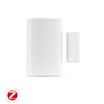
Az eWeLink vagy a Home Assistant platformon a Zigbee vezeték nélküli gombok (például SNZB-01P / SNZB-01M) intelligens jelenet- vagy automatizálási beállításokkal jelenetindítóként használhatók. A Fusion sorozatú kapcsolókhoz kapcsolva be- és kikapcsolási műveleteket hajtanak végre, így vezeték nélküli kétirányú vezérlést tesznek lehetővé.

Szükséges eszközök
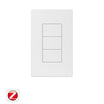
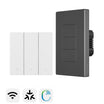
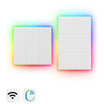
✅1 × Fusion sorozatú kapcsoló (például Orb-MW1 / Orb-MW2 / Orb-ZBW1 / Orb-ZBW1L / Orb-ZBW2 / Orb-ZBW2L)
✅1 × Zigbee vezeték nélküli gomb (például SNZB-01P / SNZB-01M)
|
SNZB-01P és SNZB-01M (Orb 4 az 1-ben) |
||
|
Zigbee vezeték nélküli gomb |
SNZB-01P |
SNZB-01M (Orb 4 az 1-ben) |
|
Gombok száma |
1 gomb |
4 gomb |
|
Támogatott műveletek |
Egyszeres megnyomás / kétszeres megnyomás / hosszan tartó megnyomás |
Mindegyik gomb támogatja az egyszeres / kétszeres / háromszoros / hosszan tartó megnyomást |
|
Protokoll |
Zigbee |
Zigbee- és eWeLink-távvezérlés |
|
Elem |
CR2477 |
CR2477 |
|
Felszerelés |
Mágneses / öntapadós / csavaros |
Mágneses / öntapadós / csavaros |
|
Elsődleges használat |
Egyszerű jelenetindítás |
Több jelenet központi vezérlése |
✅1 × Zigbee-átjáró (például SONOFF ZBBridge-P / ZBBridge-U / NSPanel Pro / iHost)
Megjegyzés: Ha ZHA- vagy Z2M-környezethez szeretne eszközöket hozzáadni, Zigbee-dongle-re is szüksége lesz (például SONOFF Dongle Plus MG24 / Dongle Max / ZBDongle-P/E / Dongle Lite MG21)
Párosítás és jelenetbeállítás
1. lépés: Eszközök hozzáadása az alkalmazáshoz
Adja hozzá a Zigbee vezeték nélküli gombot (SNZB-01P / SNZB-01M) és a Fusion kapcsolót az eWeLink alkalmazáshoz vagy a Home Assistant platformhoz.
2. lépés: Automatizálási jelenet létrehozása
- Feltétel beállítása: Válassza az „Intelligens eszköz” lehetőséget → Válassza ki az SNZB-01P vagy SNZB-01M eszközt (SNZB-01M esetén válassza ki a kívánt gombot) → Válassza ki a feltételt (Egyszeri megnyomás / Dupla megnyomás / ...)
- Művelet beállítása: Válassza az „Intelligens eszköz” lehetőséget → Válassza ki a célként megadott Fusion Zigbee-kapcsolót (többcsatornás kapcsolók esetén válassza ki a kívánt csatornát) → Válassza ki a műveletet (Átváltás)
- Mentse a jelenetet, majd engedélyezze az automatizálást.
3. lépés: Ellenőrzés
Nyomja meg a Zigbee vezeték nélküli gombot a jelenet aktiválásához. A Fusion kapcsolóhoz csatlakoztatott fénynek ennek megfelelően be- vagy ki kell kapcsolnia. A fali kapcsoló és a Zigbee vezeték nélküli gomb egyaránt szinkronban vezérelheti ugyanazt a fényt.
2. megoldás — A relé leválasztása
Az A kapcsoló a terheléshez csatlakozik, míg a B kapcsolón engedélyezve van a reléleválasztási mód, és vezeték nélküli jelenetindítóként szolgál. Intelligens jelenetkapcsolással a B kapcsoló egyszeri megnyomása átváltja az A kapcsoló állapotát, így két eszközzel vezérelhető ugyanaz a lámpa.

Szükséges eszközök
✅ 2 × Fusion kapcsoló (például Orb-MW1 / Orb-MW2 / Orb-ZBW1 / Orb-ZBW1L / Orb-ZBW2 / Orb-ZBW2L)
Megjegyzés:
- Zigbee-eszközökhöz Zigbee-átjáró szükséges (például SONOFF ZBBridge-P / ZBBridge-U / NSPanel Pro / iHost).
- Ha eszközöket szeretne hozzáadni ZHA- vagy Z2M-környezethez, Zigbee-dongle-ra is szükség van (például SONOFF Dongle Plus MG24 / Dongle Max / ZBDongle-P/E / Dongle Lite MG21).
Párosítási és beállítási lépések
1. lépés: A bekötés előkészítése
- A kapcsoló: A terheléshez, azaz a lámpához csatlakozik.
- B kapcsoló: Nincs terheléshez csatlakoztatva, kizárólag jelenetindítóként használatos.
2. lépés: Eszközök hozzáadása az alkalmazáshoz és a reléleválasztási mód engedélyezése
Adja hozzá mindkét Fusion kapcsolót az eWeLink alkalmazáshoz. Zigbee-eszközök esetén a Z2M- vagy ZHA-platformhoz is hozzáadhatja őket, majd engedélyezheti a reléleválasztási módot.
3. lépés: Automatizálási jelenet létrehozása
- Feltétel beállítása: Válassza az „Intelligens eszköz” lehetőséget → Válassza a „Switch B” elemet (többcsatornás kapcsolók esetén válassza ki a célt és a csatornát) → Válassza ki a kiváltó eseményt (egyszeri megnyomás).
- Művelet beállítása: Válassza az „Intelligens eszköz” lehetőséget → Válassza a „Switch A” elemet (többcsatornás kapcsolók esetén válassza ki a célt és a csatornát) → Válassza ki a műveletet (Váltás).
- Mentse a jelenetet, majd engedélyezze az automatizálást.
4. lépés: Ellenőrzés
Nyomja meg a B kapcsolót a jelenet aktiválásához. Az A kapcsolóhoz csatlakoztatott fénynek ennek megfelelően be- vagy ki kell kapcsolnia. Mindkét kapcsoló szinkronban vezérelheti ugyanazt a fényt.
3. megoldás — Párosítással megvalósított vezérlés (csak Home Assistant esetén)
ZHA (Zigbee Home Automation) vagy Z2M (Zigbee2MQTT) környezetben a Zigbee vezeték nélküli gomb vezérlőeszközként párosítható egy Fusion Zigbee kapcsolóval, amely céleszközként működik. Ez közvetlen eszközök közötti vezérlést és vezeték nélküli, kétirányú vezérlést tesz lehetővé.

Szükséges eszközök
✅ 1 × Zigbee vezeték nélküli gomb (például SNZB-01P / SNZB-01M)
✅ 1 × Fusion Series Zigbee switch (például Orb-MW1 / Orb-ZBW2 / Orb-ZBW2L)
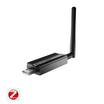
✅ 1 × Zigbee Dongle (például SONOFF Dongle Plus MG24 / Dongle Max / ZBDongle-P/E / Dongle Lite MG21).
Párosítás és jelenetbeállítás
1. lépés: Eszközök hozzáadása a Zigbee átjáróhoz
Adja hozzá az eszközöket a ZBDongle segítségével a ZHA- vagy Z2M-környezethez.
2. lépés: Párosítás
- A ZHA/Z2M felületén válassza ki a vezérlőeszközt (például SNZB-01M), majd lépjen a Binding management menübe.
- Válassza ki a céleszközt (például egy Zigbee kapcsolóterméket), majd adja meg a clustert (például a be-/kikapcsolási clustert).
- A párosítás befejezése után a vezérlőeszköz megfelelő gombjának megnyomásával közvetlenül vezérelhető a céleszköz (be / ki / váltás).
3. lépés: Ellenőrzés
Nyomja meg a Zigbee vezeték nélküli gombot a jelenet aktiválásához. A Fusion kapcsolóhoz csatlakoztatott fénynek ennek megfelelően be- vagy ki kell kapcsolnia. A fali kapcsoló és a Zigbee vezeték nélküli gomb egyaránt szinkronban vezérelheti ugyanazt a fényt.

Hagyjon megjegyzést
Minden hozzászólást moderálnak a közzététel előtt.
Ezt a webhelyet a hCaptcha rendszer védi, és a hCaptcha adatvédelmi szabályzata, valamint szolgáltatási feltételei vonatkoznak rá.