



Introdução
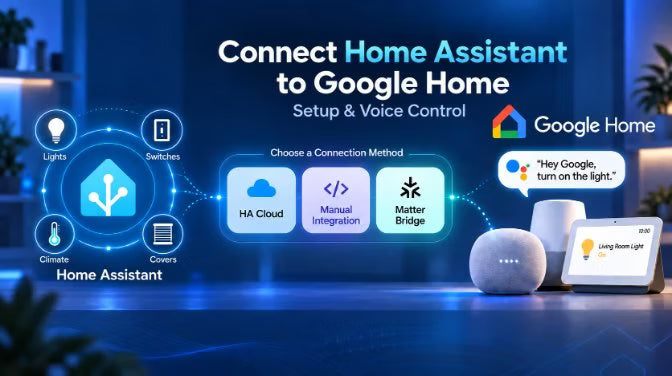
Você pode conectar o Home Assistant ao Google Home para controlar luzes, interruptores, dispositivos de climatização e outros dispositivos de casa inteligente compatíveis usando o assistente de voz do Google. A configuração mais comum consiste em disponibilizar entidades selecionadas do Home Assistant no Google Home, para que você possa usar comandos conhecidos, como "Ok Google, acenda a luz da sala."
Há várias maneiras de fazer isso. O Home Assistant Cloud oferece a configuração mais simples, enquanto a integração manual do Google Assistente evita uma assinatura do Nabu Casa, mas exige mais configurações. Uma ponte Matter compatível oferece outra opção para compartilhar dispositivos compatíveis do Home Assistant com o Google Home.
Este guia compara esses métodos de conexão, apresenta as etapas básicas de configuração e aborda problemas comuns, como dispositivos ausentes, entradas duplicadas e comandos de voz que não funcionam como esperado. Para conferir os tipos de entidade compatíveis e a compatibilidade atual, consulte a documentação da integração do Google Assistente do Home Assistant.
Nota de 2026: o Google está migrando gradualmente os alto-falantes e as telas compatíveis do Google Assistente para o Gemini para Casa. O Home Assistant ainda se refere à sua integração como Google Assistente, e o objetivo principal continua o mesmo: disponibilizar dispositivos compatíveis do Home Assistant no Google Home para controle pelo app e por voz.
1. O que a integração do Google Assistente com o Home Assistant faz?
Para a maioria dos usuários, integrar o Google Assistente ao Home Assistant significa uma coisa: controlar pelo Google Home e por comandos de voz os dispositivos que já são gerenciados pelo Home Assistant.
Em alto nível, o Google processa a solicitação de voz, enquanto o método de conexão escolhido disponibiliza os controles compatíveis do Home Assistant no Google Home.
Se uma luz da sala já funciona no Home Assistant, você pode disponibilizar a entidade de luz para o Google por meio do método de conexão escolhido. Depois que ela estiver disponível no Google Home, você poderá controlá-la pelo app Google Home ou dizer: "Ok Google, acenda a luz da sala."
Isso é diferente de várias outras integrações do Google que você pode encontrar no Home Assistant:
|
O que você quer fazer |
O que usar |
|
Controle dispositivos compatíveis do Home Assistant pelo Google Home ou por voz |
Home Assistant Cloud, o manual Integração com o Google Assistente, ou uma ponte Matter compatível |
|
Envie comandos de uma automação do Home Assistant para o Google Assistant ou transmita mensagens para alto-falantes e telas do Google |
SDK do Google Assistant |
|
Use alto-falantes, telas ou dispositivos Chromecast do Google Cast para reprodução de mídia ou transmissão |
Google Cast |
A distinção é importante. O SDK do Google Assistant permite que o Home Assistant envie comandos ao Google Assistant e transmita mensagens, enquanto o Google Cast gerencia dispositivos de mídia e Cast compatíveis. Nenhuma das duas integrações, por si só, disponibiliza todos os seus dispositivos do Home Assistant no Google Home.
Você também verá o termo entidade em todo o Home Assistant. Uma entidade é um controle, estado ou leitura individual - por exemplo, o controle de ligar/desligar de uma luz, a temperatura-alvo de um termostato ou a leitura de temperatura de um sensor. Ao conectar o Home Assistant ao Google Home, somente entidades e recursos compatíveis podem ser disponibilizados, portanto geralmente é melhor compartilhar apenas os controles que você realmente quer usar, em vez de disponibilizar tudo.
2. 3 maneiras de conectar o Home Assistant ao Google Home
Há três maneiras práticas de disponibilizar dispositivos compatíveis do Home Assistant no Google Home. A escolha certa depende principalmente da complexidade da configuração, da preferência por uma assinatura e de você querer uma integração tradicional com o Google Assistant ou uma conexão baseada em Matter.
|
Método |
Ideal para |
Assinatura do Nabu Casa |
Dificuldade de configuração |
Abordagem de conexão |
|
Home Assistant Cloud |
A maioria dos usuários que quer a configuração mais simples |
Necessária após o período de avaliação |
Fácil |
Conexão do Google Assistant gerenciada |
|
Integração manual do Google Assistant |
Usuários avançados que querem evitar uma assinatura do Nabu Casa |
Não é necessário |
Alta |
Conexão do Google Assistant gerenciada por você |
|
Ponte Matter compatível |
Usuários que querem disponibilizar dispositivos compatíveis do HA no Google Home por meio do Matter |
Não é necessário |
Média |
Conexão de dispositivos baseada em Matter por meio de uma ponte de hardware ou software |
Qual deles você deve escolher?
● Escolha o Home Assistant Cloud se quiser a configuração mais fácil.
● Escolha a integração manual do Google Assistant se você se sentir confortável com acesso externo e a configuração para desenvolvedores do Google.
● Escolha uma ponte Matter se preferir uma conexão baseada em Matter para dispositivos compatíveis do Home Assistant.
Observação: Se sua configuração atual já funciona bem, geralmente não há motivo para substituí-la. Além disso, evitar uma assinatura do Nabu Casa não necessariamente torna o controle de voz do Google totalmente local ou offline.
3. Como conectar o Home Assistant ao Google Home
Antes de começar, escolha uma luz ou um interruptor que funcione de forma confiável no Home Assistant. Teste-o primeiro lá e dê a ele um nome claro, como "Luz do corredor". Isso facilita identificar se um problema posterior vem do próprio dispositivo ou da conexão com o Google.
Configure o controle por voz com o Home Assistant Cloud
- Acesse Configurações → Home Assistant Cloud e verifique se sua conta do Cloud está conectada.
- Em Configurações → Assistentes de voz, habilite o Google Assistente.
- Em Expor, habilite o acesso do Google Assistente à sua entidade de teste.
- No aplicativo Google Home, abra Funciona com o Google Home, procure por Home Assistant Cloud by Nabu Casa e vincule sua conta.
Exponha pelo menos uma entidade compatível antes de fazer a vinculação. Se o Google Home informar "Nenhum dispositivo compatível foi encontrado," primeiro verifique se uma entidade foi exposta ao Google Assistente. 👉 Consulte o guia do Nabu Casa para o Google Assistente.
Atribua o dispositivo ao cômodo correto no Google Home, teste-o pelo aplicativo e depois tente: "Ok Google, acenda a luz do corredor." Quando o primeiro dispositivo funcionar, exponha outros dispositivos conforme necessário.
Conecte dispositivos compatíveis com uma ponte Matter
Uma ponte Matter oferece uma opção diferente:
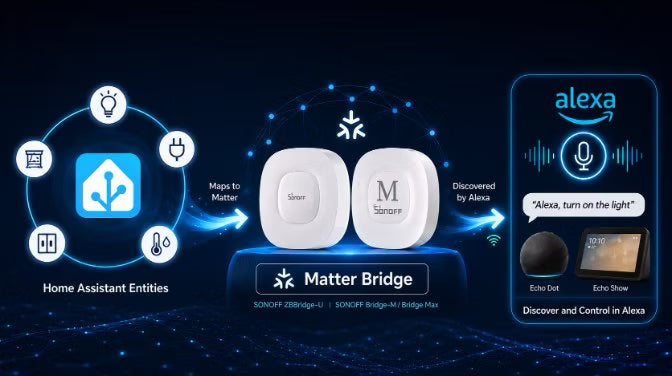
- Entidades do Home Assistant → ponte Matter → Google Home
A ponte expõe entidades compatíveis do Home Assistant como dispositivos Matter, evitando tanto uma assinatura do Nabu Casa quanto a configuração manual de um projeto de desenvolvedor do Google.
Por exemplo, SONOFF ZBBridge-U e Bridge Max (Bridge-M) podem conectar dispositivos selecionados do Home Assistant a plataformas Matter, incluindo o Google Home. Dispositivos que já funcionam no Home Assistant podem ser selecionados e compartilhados pela ponte sem precisar emparelhá-los novamente à rede Zigbee da ponte. 👉 Consulte o guia de configuração da ponte Matter do Home Assistant e a tabela de compatibilidade de dispositivos.
Alternativas de software, como o Matterbridge, também podem expor dispositivos e entidades selecionados do Home Assistant ao Matter.
Antes de escolher esta opção, verifique:
- Você tem um hub compatível com Matter e habilitado para o Google Home.
- O IPv6 está ativado e a descoberta local do Matter funciona na sua rede.
- Seus tipos de dispositivo e os controles necessários são compatíveis tanto com a ponte quanto com o Google Home.
👉 O Google documenta os requisitos de hub e IPv6 em seu guia de preparação para Matter.
Observação: a integração Matter integrada do Home Assistant atua como um controlador Matter; por si só, ela não expõe todas as entidades existentes do Home Assistant ao Google Home como dispositivos Matter. 👉 Adicione dispositivos que não são Matter ao Home Assistant por meio de uma ponte Matter
4. Controle por voz do Google Assistente: o que você pode fazer?
Depois que seus dispositivos estiverem disponíveis no Google Home, você poderá usar comandos de voz para entidades e recursos compatíveis do Home Assistant. O que funciona depende do dispositivo, da integração dele com o Home Assistant e do método de conexão usado.
Use nomes de dispositivos claros e fáceis de dizer. "Luminária de Mesa" e "Luz do Corredor" são mais fáceis de distinguir pelo Google do que vários dispositivos simplesmente chamados de "Interruptor".
|
O que você quer fazer |
Comando de exemplo |
Verifique primeiro |
|
Ligar ou desligar um dispositivo |
"Acender Luminária de Mesa" |
O controle de ligar/desligar funciona no Home Assistant |
|
Diminuir o brilho de uma luz |
"Definir Luminária de Mesa para 40 por cento" |
A luz e a integração oferecem suporte ao controle de brilho |
|
Executar uma cena |
"Ativar luzes da noite" |
A cena funciona no Home Assistant e é exposta pela sua conexão |
Para cenas e scripts, teste-os primeiro no Home Assistant. A integração do Google Assistente oferece suporte a ambos, embora eles possam não aparecer como interruptores comuns no Google Home. Com uma ponte Matter, as funções disponíveis dependem dos dispositivos compatíveis com a ponte e dos mapeamentos de recursos.
👉 Veja os tipos de entidade compatíveis com a integração do Google Assistente do Home Assistant.
Se o Google controlar o dispositivo errado, tente usar o nome completo do dispositivo. Se isso funcionar, revise os nomes dos dispositivos e as atribuições de cômodos antes de alterar a integração.
5. Solução de problemas: o Google Assistente não funciona com o Home Assistant?
Solucione os problemas nesta ordem: Home Assistant → app Google Home → controle por voz. Isso ajuda a identificar se o problema está no dispositivo, na conexão com o Google ou no comando de voz.
|
Sintoma |
Primeiro, verifique |
|
O dispositivo não funciona no Home Assistant |
Disponibilidade do dispositivo e sua integração com o HA |
|
O Home Assistant funciona, mas o Google não consegue ver o dispositivo |
Mapeamento de exposição de entidades ou ponte Matter, conta do Google e casa selecionada |
|
O app Google Home funciona, mas o controle por voz falha |
Nome do dispositivo e atribuição de cômodo |
|
O mesmo dispositivo aparece duas vezes |
Várias integrações expondo o mesmo dispositivo |
|
A ponte Matter não pode ser pareada |
Hub Matter do Google Home, IPv6 e descoberta local do Matter |
|
A ponte é pareada, mas faltam dispositivos ou recursos |
Seleção da ponte, tipo de dispositivo e mapeamento de recursos |
Faltam dispositivos no Google Home
Primeiro, confirme se o dispositivo funciona no Home Assistant. Verifique se ele está exposto ao Google Assistente ou se é compatível e foi selecionado na sua ponte Matter. Verifique também a conta do Google e a residência selecionada.
Para a conexão com o Google Assistente, tente dizer "Ok Google, sincronize meus dispositivos" depois de adicionar ou renomear entidades. O Home Assistant e a Nabu Casa documentam esse comando para atualizar os dispositivos expostos. Orientações da Nabu Casa sobre dispositivos
O Google Home funciona, mas os comandos de voz falham
Tente usar o nome exato do dispositivo e verifique a atribuição de cômodo. Se outros dispositivos responderem normalmente, concentre-se no dispositivo afetado ou no nome antes de reconectar toda a integração. Se vários controles funcionarem, concentre-se no dispositivo afetado antes de reconectar toda a conta.
O mesmo dispositivo aparece duas vezes
Verifique se uma conta do fabricante, uma conexão Matter direta e o Home Assistant estão enviando versões separadas do mesmo dispositivo para o Google. Mantenha um único caminho preferencial para esse dispositivo. Revise as rotinas antes de remover uma duplicata, pois elas podem fazer referência a ela.
Cenas ou scripts não funcionam para outros membros da residência
Se você usar a integração do Google Assistente, verifique a atribuição de área da cena ou do script no Home Assistant e confirme se a outra pessoa pertence à residência do Google Home pretendida. A Nabu Casa observa que cenas e scripts não atribuídos podem não estar disponíveis para outros membros da residência.
Se você usar uma ponte Matter, a disponibilidade de cenas e recursos dependerá dos mapeamentos compatíveis com a ponte; portanto, verifique as informações atuais de compatibilidade da ponte.
A ponte Matter não pode ser pareada
Se a própria ponte não puder ser adicionada ao Google Home, verifique primeiro se você tem um hub do Google Home compatível e habilitado para Matter, se o IPv6 está funcionando na sua rede e se a descoberta local do Matter está disponível.
A ponte Matter foi adicionada, mas faltam dispositivos ou recursos
Se a ponte for pareada com sucesso, mas alguns dispositivos ou controles não aparecerem, verifique se os dispositivos foram selecionados para a ponte e se os tipos de dispositivo e os recursos necessários são compatíveis tanto com a ponte quanto com o Google Home.
Perguntas frequentes
Q1: O Google Assistant com o Home Assistant é gratuito?
Pode. O Home Assistant Cloud exige uma assinatura paga após o período de avaliação, enquanto a integração manual do Google Assistant não exige uma assinatura da Nabu Casa. Uma ponte Matter também evita a assinatura da Nabu Casa, mas pode exigir hardware ou software adicional. Outros custos, como um nome de domínio, dependem da sua configuração.
Q2: Posso adicionar meus dispositivos do Google Home ao Home Assistant?
Não por meio da conexão com o Google Assistant descrita neste guia. Para trazer dispositivos do Google Home para o Home Assistant, use a integração própria do dispositivo com o Home Assistant, quando disponível. Dispositivos Matter compatíveis também podem ser compartilhados com o Home Assistant usando o compartilhamento multiadmin do Matter.
O compartilhamento multiadmin compartilha um dispositivo Matter existente entre controladores; ele não importa todos os dispositivos do Google Home. 👉 Instruções de compartilhamento do Matter
Q3: O Google Assistant funciona com o Home Assistant offline?
Não dependa do controle de voz do Google como uma solução totalmente offline. Mesmo quando o Matter fornece controle local dos dispositivos, isso não significa que o processamento de voz do Google funcione offline.
As automações do Home Assistant que usam integrações locais podem continuar funcionando desde que o Home Assistant, os dispositivos e suas conexões locais permaneçam disponíveis.
Para controle de voz totalmente local, considere uma configuração local do Assist do Home Assistant . 👉 Configure um assistente de voz totalmente local
Q4: O Gemini para Home muda a configuração?
O Google está migrando gradualmente alto-falantes e telas compatíveis do Google Assistant para o Gemini para Home, com disponibilidade variando conforme o dispositivo, o país, o idioma e a conta.
O Home Assistant ainda documenta sua integração como Google Assistant, e a configuração principal deste guia continua focada em disponibilizar dispositivos compatíveis do Home Assistant no Google Home. Verifique a implementação atual e o suporte a dispositivos do Google se a sua casa já tiver migrado para o Gemini para Home.
👉 Saiba mais sobre o assistente de voz Gemini para Home
👉 Serviços compatíveis com o assistente de voz Gemini para Home

Deixar comentário
Os comentários precisam ser aprovados antes da publicação.
Este site é protegido por hCaptcha e a Política de privacidade e os Termos de serviço do hCaptcha se aplicam.