









Wprowadzenie
Chcesz sterować urządzeniem Home Assistant za pomocą polecenia takiego jak „Alexa, włącz światło w salonie”? Istnieją cztery praktyczne sposoby udostępniania urządzeń Home Assistant asystentowi Alexa: Home Assistant Cloud, ręcznie skonfigurowana umiejętność Alexa Smart Home, Emulated Hue lub most Matter.
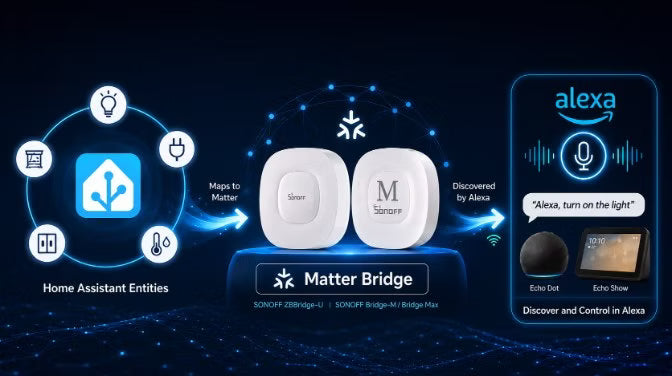
Most Matter jest przydatny, gdy chcesz uniknąć zarówno subskrypcji Home Assistant Cloud, jak i publicznie dostępnego punktu końcowego Home Assistant. Tłumaczy obsługiwane encje Home Assistant na punkty końcowe Matter, które Alexa może wykryć za pośrednictwem zgodnego kontrolera Matter.
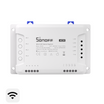
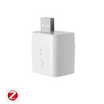
W tym przewodniku porównano cztery opcje integracji Home Assistant z Alexą, wyjaśniono, gdzie pasuje most Matter, oraz pokazano, jak udostępniać obsługiwane encje Home Assistant asystentowi Alexa za pomocą SONOFF ZBBridge-U i Bridge Max (Bridge-M).
1. Co właściwie robi integracja Home Assistant z Alexą?
Większość osób szukających integracji Home Assistant z Alexą chce właśnie tego:
- Polecenie głosowe Alexa → encja Home Assistant → inteligentne urządzenie
Twoja lampa, przełącznik, zasłona lub termostat jest już dostępny w Home Assistant. Chcesz, aby Alexa go wykryła i zapewniła wygodne sterowanie głosowe za pośrednictwem głośnika Echo lub aplikacji Alexa.
Różni się to od integracji Urządzenia Alexa w Home Assistant, która dodaje obsługiwane urządzenia Echo i urządzenia z obsługą Alexy do Home Assistant, zapewniając takie funkcje jak komunikaty, odtwarzanie dźwięku, polecenia tekstowe i tryb Nie przeszkadzać.
W tym przewodniku określenie „integracja Home Assistant z Alexą” oznacza udostępnianie urządzeń Home Assistant asystentowi Alexa w celu ich wykrywania i sterowania głosowego.
2. 4 sposoby połączenia Home Assistant z Alexą
Istnieją cztery praktyczne sposoby udostępniania urządzeń Home Assistant asystentowi Alexa: Home Assistant Cloud, ręcznie skonfigurowana umiejętność Alexa Smart Home, Emulated Hue oraz most Matter. Największe różnice dotyczą kosztu subskrypcji, tego, czy Home Assistant musi być publicznie dostępny, złożoności konfiguracji oraz obsługiwanych funkcji urządzeń.
|
Metoda |
Koszt / Wymaganie |
Publicznie dostępny punkt końcowy HA |
Konfiguracja |
Najlepsze dla |
|
Home Assistant Cloud |
Subskrypcja |
Nie ❌ |
Łatwa |
Najprostsza oficjalnie obsługiwana konfiguracja |
|
Ręczna umiejętność Alexa Smart Home |
AWS + konfiguracja deweloperska |
Tak ✅ |
Trudna |
Zaawansowani użytkownicy DIY |
|
Emulowany Hue |
Bezpłatnie |
Nie ❌ |
Średni |
Podstawowe sterowanie głosowe Alexa |
|
Most Matter |
Bezpłatna opcja programowa lub zakup sprzętu |
Nie ❌ |
Średni |
Unikanie subskrypcji i publicznego dostępu do HA |
*Home Assistant Cloud i ręczna umiejętność Smart Home zazwyczaj zapewniają szerszy zakres możliwości Alexy. Emulated Hue i most Matter są w większym stopniu uzależnione od obsługiwanych mapowań urządzeń i możliwości.
Którą metodę wybrać?
● Home Assistant Cloud: najlepszy wybór, gdy łatwość konfiguracji i oficjalne wsparcie są ważniejsze niż unikanie subskrypcji.
● Ręczna umiejętność Alexa Smart Home: najlepsza dla zaawansowanych użytkowników, którzy chcą korzystać z szerszych możliwości Alexy bez Home Assistant Cloud i mogą samodzielnie utrzymywać środowisko AWS oraz publiczny HTTPS.
● Emulated Hue: odpowiedni do podstawowego sterowania głosowego, ale jego model urządzeń w stylu Hue i wymagania dotyczące wykrywania sprawiają, że jest mniej elastyczny w przypadku nowej konfiguracji. Dokumentacja Home Assistant wskazuje, że urządzenia są w dużej mierze prezentowane Alexie jako światła w stylu Hue.
● Most Matter: przydatny, gdy chcesz, aby Home Assistant był dostępny wyłącznie lokalnie, a obsługiwane typy urządzeń były udostępniane Alexie za pośrednictwem Matter.
Uwaga: dostępne są również programowe mosty Matter. Projekty społecznościowe, takie jak Home-Assistant-Matter-Hub i Matterbridge, mogą publikować encje Home Assistant w Matter bez dedykowanego sprzętu. Most sprzętowy wykorzystuje tę samą podstawową koncepcję, ale przenosi usługę mostu na dedykowane urządzenie zamiast do kolejnego dodatku lub kontenera Home Assistant.
Mostkowanie Matter jest obecnie praktyczną opcją udostępniania obsługiwanych encji Home Assistant Alexie bez konieczności publicznego udostępniania Home Assistant. Jego głównym ograniczeniem jest kompatybilność: zarówno most, jak i Alexa muszą obsługiwać odpowiedni typ urządzenia Matter oraz daną możliwość.
3. Jak most Matter łączy Home Assistant z Alexą?
Most Matter tłumaczy obsługiwane encje Home Assistant na mostkowane punkty końcowe Matter, które Alexa może zrozumieć. Home Assistant nadal pozostaje systemem sterującym oryginalnym urządzeniem; most udostępnia tylko typy urządzeń i możliwości, które potrafi zmapować na Matter.
Architektura obejmuje dwa odrębne przepływy:
Podczas konfiguracji:
- Obsługiwana encja Home Assistant → most Matter mapuje możliwości → mostkowany punkt końcowy Matter → struktura Matter Alexa
Podczas sterowania głosowego:
- Żądanie głosowe → chmura Alexa → kompatybilny kontroler Echo lub eero Matter → most Matter → Home Assistant → urządzenie docelowe
Komunikacja Matter między kontrolerem Alexa a mostkiem odbywa się przez sieć lokalną, podobnie jak połączenie mostka z Home Assistant. Rozpoznawanie mowy przez Alexę nadal zwykle zależy od chmury Amazon.
👉 Amazon prowadzi aktualną listę obsługiwanych typów urządzeń Matter przez Alexę.
Czy Home Assistant ma wbudowany mostek Matter?
Nie. Wbudowana w Home Assistant integracja Matter sprawia, że Home Assistant pełni funkcję kontrolera Matter, a nie mostka Matter. Może sterować urządzeniami Matter i urządzeniami udostępnianymi przez zewnętrzne mostki Matter, ale nie może publikować dowolnych istniejących encji Home Assistant jako urządzeń Matter. W tym przypadku wymagany jest osobny programowy lub sprzętowy mostek Matter.
To rozróżnienie wyjaśnia również, dlaczego funkcja multi-admin Matter nie zastępuje mostka.
Mostek Matter a Matter multi-admin
- Funkcja multi-admin Matter udostępnia istniejące natywne urządzenie Matter w innej sieci Matter. Na przykład gniazdko Matter połączone z Home Assistant można również dodać do Alexy.
- Mostek Matter rozwiązuje inny problem: reprezentuje obsługiwane urządzenia inne niż Matter lub zarządzane przez platformę jako punkty końcowe Matter.
Dlatego:
- Natywne urządzenie Matter, które chcesz mieć jednocześnie w HA i Alexie → użyj funkcji multi-admin.
- Istniejąca encja HA inna niż Matter, którą chcesz sterować za pomocą Alexy → użyj mostka Matter.
4. Mostek SONOFF Matter dla Home Assistant i Alexy
SONOFF Zigbee Bridge Ultra (ZBBridge-U) oraz Bridge Max (Bridge-M) to dedykowane sprzętowe implementacje opisanego powyżej procesu działania mostka Matter. Po lokalnej autoryzacji w Home Assistant mogą udostępniać Alexie i innym ekosystemom Matter obsługiwane encje Home Assistant — w tym obsługiwane urządzenia innych marek.
Głównym powodem wyboru tego rozwiązania zamiast programowego mostka Matter są kwestie operacyjne, a nie protokołowe: nie trzeba uruchamiać ani utrzymywać kolejnego dodatku lub kontenera mostka Matter na hoście Home Assistant.
Uwaga dotycząca zgodności: Dostępne będą tylko typy encji i funkcje, które mostek może mapować na Matter i które obsługuje Alexa. Przed konfiguracją sprawdź tabelę zgodności urządzeń i funkcji mostka.
ZBBridge-U a Bridge Max: który wybrać?
Zarówno ZBBridge-U, jak i Bridge Max obsługują procedurę opisaną w tym przewodniku: autoryzację Home Assistant, konfigurację Local Web oraz synchronizację Matter Bridge z Alexą. Nie są po prostu wyższą i niższą wersją tego samego produktu — ich mocne strony są różne.

● Wybierz ZBBridge-U , jeśli priorytetem jest skala Zigbee i dodatkowe możliwości huba. Obsługuje do 256 kompatybilnych urządzeń Zigbee oraz oferuje znacznie więcej pamięci i miejsca na dane.
● Wybierz Bridge Max , jeśli ważniejsza jest szersza łączność. Obsługuje do 128 kompatybilnych urządzeń Zigbee, dodaje obsługę BTHome oraz zapewnia dwupasmową sieć Wi-Fi 6 2,4/5 GHz oprócz Ethernetu.
W opisanej w tym artykule procedurze łączenia Home Assistant z Alexą przez Matter Bridge oba produkty zapewniają wymagane funkcje Matter Bridge i Local Web.
5. Jak połączyć Home Assistant z Alexą za pomocą SONOFF Matter Bridge?
Poniższe kroki wykorzystują ZBBridge-U, ale ta sama procedura łączenia Home Assistant z Alexą jest dostępna w przypadku Bridge Max; układ menu może się nieznacznie różnić w zależności od oprogramowania układowego.
Ta konfiguracja składa się z dwóch części:
- Dodaj bridge Matter SONOFF do fabricu Matter Alexy.
- Połącz bridge Matter z Home Assistant i wybierz obsługiwane encje, które Alexa ma wykryć.
Ten przewodnik szczegółowo przedstawia procedurę właściwą dla Alexy. Informacje o tej samej procedurze z użyciem Matter Bridge w innych ekosystemach znajdziesz w Jak połączyć urządzenia Home Assistant z fabricami Matter.
Zanim zaczniesz
Potrzebne będą:
- Home Assistant z prawidłowo działającymi docelowymi urządzeniami i encjami
- Matter Bridge (ZBBridge-U lub Bridge Max) z aktualnym oprogramowaniem układowym
- Aktualna aplikacja Alexa na telefonie
- Kompatybilny głośnik Echo lub eero pełniący funkcję kontrolera Matter Alexa
- Aplikacja Alexa jest zalogowana na konto Amazon, które zarządza tym kontrolerem
W przypadku wstępnej konfiguracji bridge, telefon i kontroler Matter Alexa muszą znajdować się w tej samej sieci LAN. Home Assistant musi być również lokalnie osiągalny przez bridge. Zaawansowane konfiguracje VLAN mogą działać, ale uruchamianie urządzeń Matter zależy od IPv6 i wykrywania multicastowego, dlatego może wymagać dodatkowej konfiguracji sieci.
Aplikacja Alexa służy do konfiguracji, ale sama nie jest kontrolerem Matter. Sprawdź aktualną listę urządzeń Echo i eero zgodnych z Matter.
Wskazówka: Przed synchronizacją używaj krótkich, odrębnych nazw encji. Unikaj udostępniania wielu urządzeń o niemal identycznych nazwach w Alexie, ponieważ może to utrudnić jednoznaczne wskazanie urządzenia za pomocą głosu.
Krok 1: Otwórz lokalny interfejs internetowy
Włącz most i połącz go z siecią lokalną. Na telefonie lub komputerze podłączonym do tej samej sieci otwórz: http://zbbridgeu.local/. Jeśli adres .local nie działa, użyj adresu IP mostu wyświetlanego przez router.
👉 Użytkownicy Bridge Max powinni otworzyć własny lokalny adres interfejsu internetowego mostu lub skorzystać z instrukcji konfiguracji lokalnego interfejsu internetowego Bridge Max.
Podczas pierwszego logowania postępuj zgodnie z instrukcjami, aby ustawić strefę czasową i utworzyć lokalne hasło.

Krok 2: Dodaj most Matter do Alexy
Na stronie głównej lokalnego interfejsu internetowego znajdź Matter Bridge i wybierz Rozpocznij parowanie. Możesz również otworzyć Matter Bridge z menu nawigacji po lewej stronie i rozpocząć parowanie na karcie Parowanie.


Most wyświetla kod QR Matter oraz numeryczny kod parowania. Sesja parowania pozostaje aktywna przez około 15 minut.


W aplikacji Alexa:
- Otwórz Urządzenia.
- Wybierz + → Dodaj urządzenie.
- Wybierz Matter.
- Zeskanuj kod QR lub wprowadź numeryczny kod parowania.
- Postępuj zgodnie z instrukcjami wyświetlanymi na ekranie, aby ukończyć konfigurację.
Nazwy opcji w menu Alexy mogą się różnić w zależności od wersji aplikacji i regionu.
Po sparowaniu otwórz Matter Bridge → Matter Fabrics w lokalnym interfejsie internetowym, aby potwierdzić, że most dołączył do fabric Matter. Usunięcie tej fabric sprawi również, że powiązane z nią urządzenia będą w Alexie wyświetlane jako offline lub niedostępne.

Krok 3: Połącz most z Home Assistant
W lokalnym interfejsie internetowym mostu wybierz: Home Assistant → Synchronizuj encje Home Assistant z Matter Fabric.

Wybierz Rozpocznij. Most skanuje sieć lokalną w poszukiwaniu dostępnych instancji Home Assistant.

Jeśli serwer zostanie znaleziony, wybierz go i kontynuuj. Jeśli automatyczne wykrywanie się nie powiedzie, wybierz Konfiguracja ręczna i wprowadź:
- Lokalny adres IP lub nazwa domenowa Home Assistant.
- Port Home Assistant — zwykle 8123, chyba że zostało to zmienione.
Wybierz Zaloguj się do Home Assistant, wprowadź dane logowania do Home Assistant na stronie autoryzacji i zatwierdź dostęp.
 Po autoryzacji mostek wczytuje urządzenia i encje Home Assistant, które może ocenić pod kątem synchronizacji z Matter.
Krok 4: Wybierz encje Home Assistant do udostępnienia Alexie
W interfejsie lokalnym mostka otwórz Home Assistant → Synchronizuj encje Home Assistant ze strukturami Matter → Zarządzanie synchronizacją.

Lista pokazuje stan każdej encji:
- Niezsynchronizowane: obsługiwane i dostępne do wyboru
- Zsynchronizowane: już udostępnione w strukturze Matter
- Nieobsługiwane: obecnie nie można zmapować przez mostek
Zaznacz tylko obsługiwane encje, które chcesz, aby Alexa wykryła, a następnie wybierz Zapisz.

Unikaj udostępniania encji diagnostycznych lub aktualizacji. Nie wysyłaj też tego samego urządzenia do Alexy zarówno za pośrednictwem umiejętności producenta, jak i mostka Matter, ponieważ wiele ścieżek integracji może utworzyć zduplikowane urządzenia Alexa.
Encja widoczna w Home Assistant nie jest automatycznie dostępna do synchronizacji. Jej typ musi być obsługiwany przez mostek i mapować się na funkcję obsługiwaną przez Alexę. Zapoznaj się z tabelą zgodności urządzeń i funkcji mostka, gdy oczekiwana encja lub funkcja sterowania jest niedostępna.
Krok 5: Potwierdź urządzenia i przetestuj sterowanie głosowe Alexa
Daj Alexie chwilę na odświeżenie udostępnionych punktów końcowych. W razie potrzeby rozpocznij wyszukiwanie urządzeń w aplikacji Alexa. Przypisz znalezione urządzenia do odpowiednich pomieszczeń Alexa, a następnie zacznij od podstawowego polecenia, takiego jak „Alexa, włącz lampkę na biurku”.
Jeśli sterowanie włączaniem i wyłączaniem działa, przetestuj dodatkowe obsługiwane funkcje, takie jak jasność, temperatura barwowa, położenie zasłon lub wartość zadana termostatu.
Używasz urządzeń Zigbee? Te kroki zakładają, że urządzenia, które chcesz udostępnić, są już dostępne w Home Assistant. Jeśli urządzenia zarządzane przez ZBBridge-U lub Bridge Max nie zostały jeszcze zsynchronizowane z Home Assistant, najpierw zapoznaj się z artykułem Jak synchronizować urządzenia podrzędne Zigbee z Home Assistant przez MQTT.
6. Rozwiązywanie problemów z mostkiem Alexa Matter w Home Assistant
Alexa nie może znaleźć mostka Matter
Upewnij się, że masz zgodny kontroler Echo lub eero Matter. Sprawdź ruch IPv6 i multicast, unikaj gościnnej sieci Wi-Fi lub izolacji klientów, a przed ponownym skanowaniem kodu rozpocznij nową sesję parowania Matter.
Alexa znajduje zduplikowane urządzenia
Urządzenie może docierać do Alexy jednocześnie przez funkcję producenta, bezpośrednią konfigurację Matter oraz mostek Matter Home Assistant. Zdecyduj, która ścieżka ma być nadrzędna, wyłącz lub usuń pozostałe, a następnie ponownie uruchom wykrywanie. Jeśli celowo zachowujesz wiele ścieżek, nadaj im wyraźne nazwy, aby zapobiec kierowaniu procedur Alexa i przypisań pomieszczeń do niewłaściwego punktu końcowego.
Brak urządzenia lub funkcji Home Assistant w Alexie
Urządzenie może nie działać na kilku etapach między Home Assistant a Alexą. Sprawdź ścieżkę w następującej kolejności:
- Potwierdź, że urządzenie działa w Home Assistant. Jeśli sama encja jest niedostępna lub nie można nią sterować w Home Assistant, najpierw napraw tę integrację.
- Sprawdź, czy mostek widzi encję. Otwórz stronę synchronizacji Home Assistant w Local Web i potwierdź, że urządzenie lub encja są widoczne.
- Sprawdź jej stan synchronizacji. Jeśli widnieje Nieobsługiwane, mostek nie może obecnie przypisać tej encji ani funkcji do Matter. Jeśli widnieje Niezsynchronizowane, wybierz ją i zapisz konfigurację.
- Sprawdź tabelę kompatybilności SONOFF. Typ encji Home Assistant może obejmować kilka możliwości, a mostek może udostępniać tylko podzbiór zgodny z Matter.
- Sprawdź obsługę Matter przez Alexę. Nawet jeśli mostek może utworzyć punkt końcowy Matter, Alexa może nie udostępniać każdego typu urządzenia Matter, klastra ani funkcji.
- Odśwież wykrywanie urządzeń Alexa. Jeśli encja została prawidłowo zsynchronizowana, ale nie jest widoczna, ponownie uruchom wykrywanie urządzeń i sprawdź, czy nie została dodana pod inną nazwą urządzenia lub do innego pomieszczenia.
Na przykład inteligentne gniazdko może prawidłowo udostępniać sterowanie włączaniem i wyłączaniem, podczas gdy pomiary mocy lub energii pozostają niedostępne. Ważne jest rozróżnienie: obsługa urządzenia i obsługa funkcji to nie to samo.
Najczęściej zadawane pytania dotyczące integracji Home Assistant z Alexą
P1: Czy Home Assistant może łączyć się z Alexą bez Nabu Casa?
Tak. Dostępne opcje obejmują ręcznie skonfigurowaną funkcję Alexa Smart Home Skill, Emulated Hue do ograniczonych zastosowań oraz rozwiązania oparte na mostku Matter.
P2: Czy Alexa steruje urządzeniami Matter lokalnie?
Komunikacja Matter między kompatybilnym kontrolerem Alexa Matter a urządzeniem lub mostkiem Matter odbywa się lokalnie. Przetwarzanie poleceń głosowych Alexa nadal zwykle korzysta z chmury Amazon.
P3: Czy do mostka Matter Home Assistant potrzebuję urządzenia Echo?
Potrzebujesz kompatybilnego kontrolera Alexa Matter, takiego jak obsługiwane urządzenie Echo lub eero. Sama aplikacja mobilna Alexa nie jest kontrolerem Matter.

Zostaw komentarz
Wszystkie komentarze są moderowane przed opublikowaniem.
Ta strona jest chroniona przez hCaptcha i obowiązują na niej Polityka prywatności i Warunki korzystania z usługi serwisu hCaptcha.