









Bevezetés
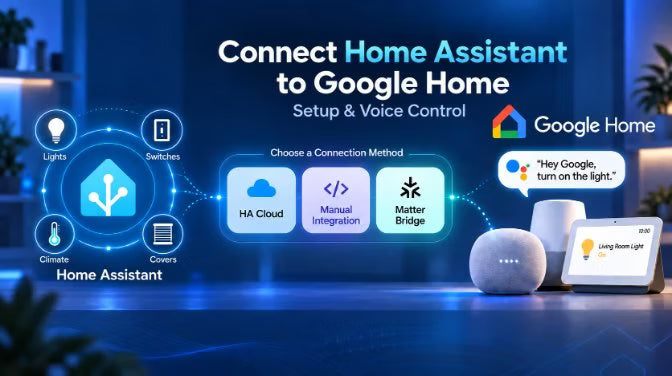
A Home Assistantot összekapcsolhatja a Google Home-mal, így a Google hangsegédjével vezérelheti a támogatott lámpákat, kapcsolókat, klímaberendezéseket és más okosotthon-eszközöket. A leggyakoribb beállítás szerint a kiválasztott Home Assistant-entitásokat elérhetővé teszi a Google Home-ban, így olyan megszokott parancsokat használhat, mint például: „Hey Google, kapcsold fel a nappalilámpát.”
Erre többféle lehetőség is van. A Home Assistant Cloud biztosítja a legegyszerűbb beállítást, míg a kézi Google Assistant-integráció elkerüli a Nabu Casa-előfizetést, de több konfigurációt igényel. Egy kompatibilis Matter-híd további lehetőséget kínál a támogatott Home Assistant-eszközök megosztására a Google Home-mal.
Ez az útmutató összehasonlítja ezeket a kapcsolódási módszereket, bemutatja az alapvető beállítást, és kitér az olyan gyakori problémákra, mint a hiányzó eszközök, a duplikált bejegyzések és a várt módon nem működő hangutasítások. A támogatott entitástípusokról és az aktuális kompatibilitásról a Home Assistant Google Assistant-integrációjának dokumentációjában talál további információt.
Megjegyzés 2026-ra: A Google fokozatosan átállítja a támogatott hangszórókat és kijelzőket a Google Assistantről a Gemini for Home-ra. A Home Assistant továbbra is Google Assistant-integrációként hivatkozik erre, és a fő cél változatlan: a támogatott Home Assistant-eszközök elérhetővé tétele a Google Home-ban alkalmazásból és hanggal történő vezérléshez.
1. Mit tesz a Google Assistant és a Home Assistant integrációja?
A legtöbb felhasználó számára a Google Assistant és a Home Assistant integrálása egyet jelent: a Home Assistant által már kezelt eszközök vezérlését a Google Home-on és hangutasításokkal.
Nagy vonalakban a Google kezeli a hangkérést, a választott kapcsolódási módszer pedig elérhetővé teszi a támogatott Home Assistant-vezérlőket a Google Home-ban.
Ha egy nappalilámpa már működik a Home Assistantban, a választott kapcsolódási módszerrel elérhetővé teheti a lámpaentitást a Google számára. Miután elérhetővé vált a Google Home-ban, a Google Home alkalmazásból vezérelheti, vagy mondhatja: „Hey Google, kapcsold fel a nappalilámpát.”
Ez eltér számos más Google-integrációtól, amelyet a Home Assistantban láthat:
|
Mit szeretnél tenni? |
Mire használható |
|
Támogatott Home Assistant-eszközök vezérlése a Google Home-ból vagy hanggal |
Home Assistant Cloud, a kézi beállítás Google Assistant-integráció, vagy egy kompatibilis Matter-híd |
|
Parancsok küldése egy Home Assistant-automatizálásból a Google Assistantnek, illetve üzenetek sugárzása Google-hangszórókra és -kijelzőkre |
Google Assistant SDK |
|
Google Cast-hangszórók, kijelzők vagy Chromecast-eszközök használata médialejátszáshoz vagy átküldéshez |
Google Cast |
Fontos különbségről van szó. A Google Assistant SDK lehetővé teszi, hogy a Home Assistant parancsokat küldjön a Google Assistantnek és üzeneteket sugározzon, míg a Google Cast kompatibilis média- és Cast-eszközöket kezel. Egyik integráció sem teszi önmagában elérhetővé az összes Home Assistant-eszközét a Google Home-ban.
A Home Assistantban gyakran találkozni fog az entitás kifejezéssel is. Az entitás egyedi vezérlő, állapot vagy érték - például egy lámpa be- és kikapcsolása, egy termosztát célhőmérséklete vagy egy érzékelő által mért hőmérséklet. A Home Assistant Google Home-hoz való csatlakoztatásakor csak a támogatott entitások és képességek tehetők elérhetővé, ezért általában jobb csak a ténylegesen használni kívánt vezérlőket megosztani, mint mindent elérhetővé tenni.
2. 3 módszer a Home Assistant Google Home-hoz való csatlakoztatására
Három gyakorlati módja van annak, hogy a támogatott Home Assistant-eszközök elérhetővé váljanak a Google Home-ban. A megfelelő választás elsősorban a beállítás összetettségétől, az előfizetéssel kapcsolatos preferenciáktól, valamint attól függ, hogy hagyományos Google Assistant-integrációt vagy Matter-alapú kapcsolatot szeretne-e.
|
Módszer |
Leginkább azoknak ajánlott, akik |
Nabu Casa-előfizetés |
A beállítás nehézsége |
Kapcsolódási mód |
|
Home Assistant Cloud |
A legtöbb felhasználónak, aki a legegyszerűbb beállítást szeretné |
A próbaidőszak után szükséges |
Egyszerű |
Kezelt Google Assistant-kapcsolat |
|
Manuális Google Assistant-integráció |
Haladó felhasználóknak, akik el szeretnék kerülni a Nabu Casa-előfizetést |
Nem szükséges |
Magas |
Saját kezelésű Google Assistant-kapcsolat |
|
Kompatibilis Matter-híd |
Azoknak a felhasználóknak, akik a támogatott HA-eszközöket Matteren keresztül szeretnék elérhetővé tenni a Google Home-ban |
Nem szükséges |
Közepes |
Matter-alapú eszközkapcsolat hardveres vagy szoftveres hídon keresztül |
Melyiket válassza?
● Válassza a Home Assistant Cloudot, ha a legegyszerűbb beállítást szeretné.
● Válassza a manuális Google Assistant-integrációt, ha jártas a külső hozzáférés és a Google fejlesztői konfigurációjának beállításában.
● Válasszon Matter-hidat, ha a támogatott Home Assistant-eszközökhöz Matter-alapú kapcsolatot szeretne.
Megjegyzés: Ha a jelenlegi beállítás jól működik, általában nincs ok a lecserélésére. A Nabu Casa-előfizetés elkerülése önmagában nem feltétlenül teszi teljesen helyivé vagy offline-ná a Google hangvezérlését.
3. A Home Assistant csatlakoztatása a Google Home-hoz
Mielőtt elkezdi, válasszon egy olyan lámpát vagy kapcsolót, amely megbízhatóan működik a Home Assistantban. Először ott tesztelje, és adjon neki egyértelmű nevet, például „Folyosó lámpája”. Így könnyebben megállapítható, hogy egy későbbi probléma magából az eszközből vagy a Google-kapcsolatból ered-e.
Hangvezérlés beállítása a Home Assistant Clouddal
- Lépjen a Beállítások → Home Assistant Cloud menübe, és győződjön meg róla, hogy a Cloud-fiókja csatlakoztatva van.
- A Beállítások → Hangsegédek menüpontban engedélyezze a Google Assistant használatát.
- Az Expose menüpontban engedélyezze a Google Assistant-hozzáférést a tesztelni kívánt entitásnál.
- A Google Home alkalmazásban nyissa meg a Works with Google Home lehetőséget, keressen rá a Home Assistant Cloud by Nabu Casa szolgáltatásra, majd kapcsolja össze a fiókját.
A kapcsolás előtt tegyen elérhetővé legalább egy támogatott entitást. Ha a Google Home azt jelzi, hogy „Nem találhatók kompatibilis eszközök”, először ellenőrizze, hogy egy entitás elérhetővé lett-e téve a Google Assistant számára. 👉 Tekintse meg a Nabu Casa Google Assistant-útmutatóját.
Rendelje az eszközt a megfelelő helyiséghez a Google Home-ban, tesztelje az alkalmazásból, majd próbálja ki: „Hey Google, kapcsold fel a Folyosó lámpáját.” Ha az első eszköz működik, szükség szerint tegye elérhetővé a további eszközöket is.
Támogatott eszközök csatlakoztatása Matter-híddal
A Matter-híd egy másik lehetőséget biztosít:
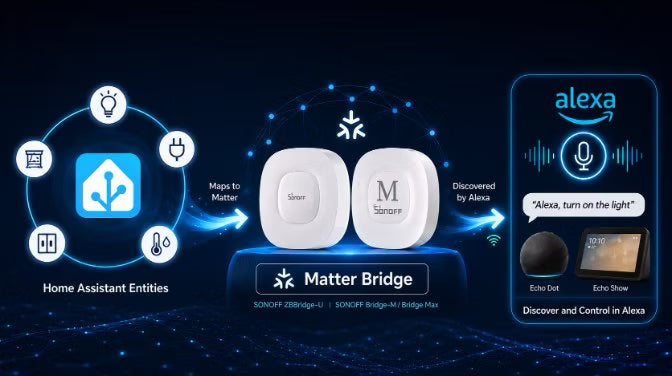
- Home Assistant-entitások → Matter-híd → Google Home
A híd a támogatott Home Assistant-entitásokat Matter-eszközökként teszi elérhetővé, így nincs szükség sem Nabu Casa-előfizetésre, sem a Google fejlesztői projekt manuális beállítására.
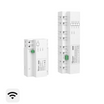
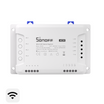
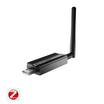
Például a SONOFF ZBBridge-U és a Bridge Max (Bridge-M) képes kiválasztott Home Assistant-eszközöket Matter-platformokra, köztük a Google Home-ra továbbítani. A Home Assistantban már működő eszközök kiválaszthatók és megoszthatók a hídon keresztül anélkül, hogy újra párosítani kellene őket a híd Zigbee-hálózatával. 👉 Tekintse meg a Home Assistant Matter Bridge beállítási útmutatóját és eszközkompatibilitási táblázatát.
Az olyan szoftveres alternatívák, mint a Matterbridge, szintén elérhetővé tehetik a kiválasztott Home Assistant-eszközöket és entitásokat a Matter számára.
Mielőtt ezt az utat választja, ellenőrizze:
- Kompatibilis, Matter-kompatibilis hubbal rendelkezik a Google Home-hoz.
- Az IPv6 engedélyezve van, és a helyi Matter-felderítés működik a hálózatodon.
- Az eszköztípusaidat és a szükséges vezérlőket mind a bridge, mind a Google Home támogatja.
👉 A Google a hubbal és az IPv6-tal kapcsolatos követelményeket a Matter-előkészítési útmutatójában ismerteti.
Megjegyzés: A Home Assistant beépített Matter-integrációja Matter-vezérlőként működik; önmagában nem teszi lehetővé, hogy az összes meglévő Home Assistant-entitás Matter-eszközként megjelenjen a Google Home-ban. 👉 Nem Matter-eszközök hozzáadása a Home Assistanthez Matter-bridge-en keresztül
4. Google Assistant hangvezérlés: Mire használható?
Miután az eszközeid elérhetővé váltak a Google Home-ban, hangparancsokkal használhatod a támogatott Home Assistant-entitásokat és -képességeket. Az elérhető funkciók az eszköztől, annak Home Assistant-integrációjától és az általad használt kapcsolódási módtól függnek.
Használj könnyen kimondható, egyértelmű eszközneveket. Az „Íróasztali lámpa” és a „Folyosói lámpa” nevet a Google könnyebben megkülönbözteti, mint több, egyszerűen „Kapcsoló” nevű eszközt.
|
Mit szeretnél tenni? |
Példa parancs |
Először ellenőrizd |
|
Eszköz be- vagy kikapcsolása |
"Íróasztali lámpa bekapcsolása" |
A be- és kikapcsolás működik a Home Assistantban |
|
Egy lámpa fényerejének csökkentése |
"Íróasztali lámpa beállítása 40 százalékra" |
A lámpa és az integráció támogatja a fényerő-szabályozást |
|
Jelenet futtatása |
"Esti fények bekapcsolása" |
A jelenet működik a Home Assistantban, és elérhetővé van téve a kapcsolatodon keresztül |
Jelenetek és szkriptek esetén először a Home Assistantban teszteld őket. A Google Assistant-integráció mindkettőt támogatja, bár a Google Home-ban nem feltétlenül jelennek meg hagyományos kapcsolóként. Matter-bridge esetén az elérhető funkciók a bridge által támogatott eszközöktől és funkcióleképezésektől függnek.
👉 Tekintsd meg a Home Assistant Google Assistant-integrációja által támogatott entitástípusokat.
Ha a Google a nem megfelelő eszközt vezérli, próbáld az eszköz teljes nevét használni. Ha ez működik, az integráció módosítása előtt ellenőrizd az eszközneveket és a helyiség-hozzárendeléseket.
5. Hibaelhárítás: Nem működik a Google Assistant a Home Assistanttal?
Hibaelhárítási sorrend: Home Assistant → Google Home alkalmazás → hangvezérlés. Ez segít azonosítani, hogy a probléma az eszközzel, a Google-kapcsolattal vagy a hangparanccsal van-e.
|
Tünet |
Első ellenőrzés |
|
Az eszköz nem működik a Home Assistantban |
Az eszköz elérhetősége és a Home Assistant-integrációja |
|
A Home Assistant működik, de a Google nem látja az eszközt |
Entitás-expozíció vagy Matter-bridge-leképezés, Google-fiók és kiválasztott otthon |
|
A Google Home alkalmazás működik, de a hangvezérlés nem |
Eszköznév és helyiség-hozzárendelés |
|
Ugyanaz az eszköz kétszer jelenik meg |
Több integráció teszi elérhetővé ugyanazt az eszközt |
|
A Matter bridge nem párosítható |
Google Home Matter-hub, IPv6 és helyi Matter-felderítés |
|
A bridge párosul, de eszközök vagy funkciók hiányoznak |
Bridge-kiválasztás, eszköztípus és funkció-hozzárendelés |
Eszközök hiányoznak a Google Home-ból
Először erősítse meg, hogy az eszköz működik a Home Assistantban. Ellenőrizze, hogy meg van-e osztva a Google Assistanttal, illetve hogy a Matter bridge támogatja és ki van-e választva. Ellenőrizze a Google-fiókot és a kiválasztott otthont is.
A Google Assistant-kapcsolat esetén próbálja meg a „Hey Google, sync my devices” parancsot az entitások hozzáadása vagy átnevezése után. A Home Assistant és a Nabu Casa egyaránt dokumentálja ezt a parancsot a megosztott eszközök frissítéséhez. A Nabu Casa eszközökkel kapcsolatos útmutatója
A Google Home működik, de a hangparancsok nem
Próbálja meg az eszköz pontos nevét, és ellenőrizze a helyiség-hozzárendelését. Ha más eszközök normálisan válaszolnak, az egész integráció újracsatlakoztatása előtt az érintett eszközre vagy névre összpontosítson. Ha több vezérlő működik, az egész fiók újracsatlakoztatása előtt az érintett eszközt ellenőrizze.
Ugyanaz az eszköz kétszer jelenik meg
Ellenőrizze, hogy egy gyártói fiók, a közvetlen Matter-kapcsolat és a Home Assistant nem küldi-e külön-külön ugyanannak az eszköznek a verzióit a Google-nak. Az adott eszközhöz tartson meg egy előnyben részesített kapcsolódási módot. Egy példány eltávolítása előtt tekintse át a rutinokat, mert hivatkozhatnak rá.
A jelenetek vagy szkriptek nem működnek a háztartás többi tagjánál
Ha a Google Assistant-integrációt használja, ellenőrizze a Home Assistantban a jelenethez vagy szkripthez rendelt területet, és győződjön meg arról, hogy a másik személy a megfelelő Google Home-háztartáshoz tartozik. A Nabu Casa szerint a hozzá nem rendelt jelenetek és szkriptek nem feltétlenül érhetők el a háztartás többi tagja számára.
Ha Matter bridge-et használ, a jelenetek és funkciók elérhetősége a bridge által támogatott hozzárendelésektől függ, ezért ellenőrizze a bridge aktuális kompatibilitási adatait.
A Matter bridge nem párosítható
Ha magát a bridge-et nem lehet hozzáadni a Google Home-hoz, először ellenőrizze, hogy rendelkezik-e kompatibilis, Matter-kompatibilis Google Home hubbal, működik-e az IPv6 a hálózatán, és elérhető-e a helyi Matter-felderítés.
A Matter bridge hozzáadva, de eszközök vagy funkciók hiányoznak
Ha a bridge párosítása sikeres, de egyes eszközök vagy vezérlők nem jelennek meg, ellenőrizze, hogy az eszközöket kiválasztotta-e a bridge-en való megosztáshoz, illetve hogy az eszköztípusaikat és a szükséges funkcióikat mind a bridge, mind a Google Home támogatja-e.
Gyakran ismételt kérdések
1. kérdés: Ingyenes a Google Assistant a Home Assistanttal?
Lehetséges. A Home Assistant Cloud a próbaidőszak után fizetős előfizetést igényel, míg a manuális Google Assistant-integrációhoz nincs szükség Nabu Casa-előfizetésre. A Matter-híd szintén elkerüli a Nabu Casa-előfizetést, de további hardvert vagy szoftvert igényelhet. Az egyéb költségek, például egy domainnév díja, a beállítástól függnek.
2. kérdés: Hozzáadhatom a Google Home-eszközeimet a Home Assistanthez?
Nem az útmutatóban ismertetett Google Assistant-kapcsolaton keresztül. Ha a Google Home-ból szeretne eszközöket a Home Assistantba hozni, használja az eszköz saját Home Assistant-integrációját, ha elérhető. A kompatibilis Matter-eszközök a Matter többadminos funkciójával is megoszthatók a Home Assistanttal.
A többadminos megosztás egy meglévő Matter-eszközt oszt meg a vezérlők között; nem importál minden eszközt a Google Home-ból. 👉 Útmutató a Matter-megosztáshoz
3. kérdés: Működik a Google Assistant a Home Assistanttal offline?
Ne hagyatkozzon a Google hangvezérlésére teljesen offline megoldásként. Még ha a Matter helyi eszközvezérlést is biztosít, ez nem jelenti azt, hogy a Google hangfeldolgozása offline működik.
A helyi integrációkat használó Home Assistant-automatizálások továbbra is működhetnek, amíg a Home Assistant, az eszközök és a helyi kapcsolataik elérhetők maradnak.
A teljesen helyi hangvezérléshez fontolja meg egy helyi Home Assistant Assist beállítását. 👉 Teljesen helyi hangasszisztens beállítása
4. kérdés: Megváltoztatja a Gemini for Home a beállítást?
A Google fokozatosan átállítja a támogatott hangszórókat és kijelzőket a Google Assistantről a Gemini for Home rendszerre; az elérhetőség eszköz-, ország-, nyelv- és fiókfüggő.
A Home Assistant továbbra is Google Assistant néven dokumentálja az integrációját, és az útmutató alapvető beállítása továbbra is arra összpontosít, hogy a támogatott Home Assistant-eszközök elérhetők legyenek a Google Home-ban. Ha otthonában már áttértek a Gemini for Home használatára, ellenőrizze a Google aktuális bevezetési ütemtervét és az eszköztámogatást.
👉 Ismerje meg a Gemini for Home hangasszisztenst
👉 A Gemini for Home hangasszisztens által támogatott szolgáltatások

Hagyjon megjegyzést
Minden hozzászólást moderálnak a közzététel előtt.
Ezt a webhelyet a hCaptcha rendszer védi, és a hCaptcha adatvédelmi szabályzata, valamint szolgáltatási feltételei vonatkoznak rá.