








Introducción
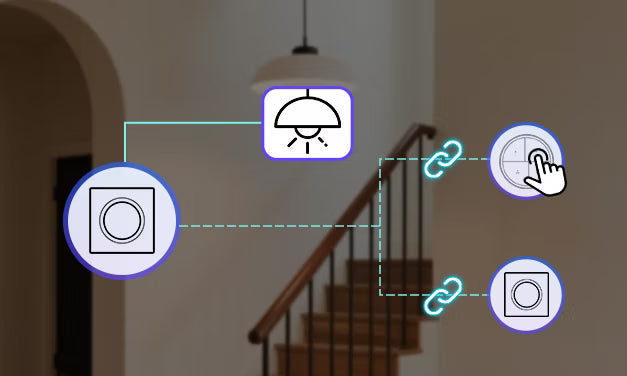
Si utilizas un interruptor de la serie Fusion de SONOFF, quizá te preguntes cómo conseguir un control bidireccional. Esta guía presenta soluciones inteligentes de control bidireccional para interruptores Fusion con distintos protocolos de comunicación. Mediante escenas inteligentes, estas soluciones permiten controlar desde varios puntos sin cableado adicional: son flexibles, prácticas y muy útiles.
Solución 1 — Vinculación mediante escena inteligente
En las plataformas eWeLink o Home Assistant, los botones inalámbricos Zigbee (p. ej., SNZB-01P / SNZB-01M) pueden utilizarse como activadores de escenas mediante la configuración de escenas inteligentes o automatizaciones. Se vinculan con los interruptores de la serie Fusion para realizar acciones de encendido/apagado, lo que permite un control inalámbrico bidireccional.

Dispositivos necesarios
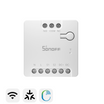
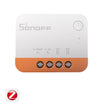
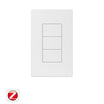
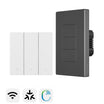
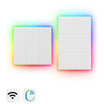
✅1 × interruptor de la serie Fusion (p. ej., Orb-MW1 / Orb-MW2 / Orb-ZBW1 / Orb-ZBW1L / Orb-ZBW2 / Orb-ZBW2L)
✅1 × botón inalámbrico Zigbee (p. ej., SNZB-01P / SNZB-01M)
|
SNZB-01P frente a SNZB-01M (Orb 4-In-1) |
||
|
Botón inalámbrico Zigbee |
SNZB-01P |
SNZB-01M (Orb 4-In-1) |
|
Número de botones |
1 botón |
4 botones |
|
Acciones compatibles |
Pulsación simple / doble / prolongada |
Cada botón admite una pulsación simple, doble, triple o prolongada |
|
Protocolo |
Zigbee |
Control remoto Zigbee y eWeLink |
|
Batería |
CR2477 |
CR2477 |
|
Montaje |
Magnético / adhesivo / con tornillos |
Magnético / adhesivo / con tornillos |
|
Uso principal |
Activación sencilla de escenas |
Control centralizado de varias escenas |
✅1 × pasarela Zigbee (p. ej., SONOFF ZBBridge-P / ZBBridge-U / NSPanel Pro / iHost)
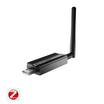
Nota: Si tienes la intención de añadir dispositivos a un entorno ZHA o Z2M, también debes disponer de un dongle Zigbee (p. ej., SONOFF Dongle Plus MG24 / Dongle Max / ZBDongle-P/E / Dongle Lite MG21)
Emparejamiento y configuración de escenas
Paso 1: Añadir dispositivos a la aplicación
Añade el botón inalámbrico Zigbee (SNZB-01P / SNZB-01M) y el interruptor Fusion a la aplicación eWeLink o a la plataforma Home Assistant.
Paso 2: Crear una escena de automatización
- Configurar el activador: Selecciona «Dispositivo inteligente» → Elige SNZB-01P o SNZB-01M (para SNZB-01M, selecciona el botón de destino) → Selecciona el activador (Pulsación única / Doble pulsación / ...)
- Configurar la acción: Selecciona «Dispositivo inteligente» → Elige el interruptor Zigbee Fusion de destino (en los interruptores multicanal, selecciona el canal de destino) → Selecciona la acción (Invertir)
- Guarda y activa la escena de automatización.
Paso 3: Verificar
Presiona el botón inalámbrico Zigbee para activar la escena. La luz conectada al interruptor Fusion debería encenderse o apagarse según corresponda. Tanto el interruptor de pared como el botón inalámbrico Zigbee pueden controlar la misma luz de forma sincronizada.
Solución 2 — Desconectar el relé
El interruptor A está conectado a la carga, mientras que el interruptor B tiene activado el modo de desconexión del relé y funciona como activador inalámbrico de escenas. Mediante la vinculación de escenas inteligentes, una pulsación en el interruptor B cambia el estado del interruptor A, lo que permite que dos dispositivos controlen la misma luz.

Dispositivos necesarios
✅ 2 × interruptores Fusion (por ejemplo, Orb-MW1 / Orb-MW2 / Orb-ZBW1 / Orb-ZBW1L / Orb-ZBW2 / Orb-ZBW2L)
Nota:
- Para los dispositivos Zigbee, se requiere una puerta de enlace Zigbee (por ejemplo, SONOFF ZBBridge-P / ZBBridge-U / NSPanel Pro / iHost).
- Si deseas añadir dispositivos a un entorno ZHA o Z2M, también necesitarás el dongle Zigbee (por ejemplo, SONOFF Dongle Plus MG24 / Dongle Max / ZBDongle-P/E / Dongle Lite MG21).
Pasos de emparejamiento y configuración
Paso 1: Preparación del cableado
- Interruptor A: Está conectado a la luz de carga.
- Interruptor B: No está conectado a ninguna carga; se utiliza únicamente como activador de escenas.
Paso 2: Añadir dispositivos a la aplicación y activar el modo de desconexión del relé
Añade ambos interruptores Fusion a la aplicación eWeLink. Para los dispositivos Zigbee, también puedes añadirlos a una plataforma Z2M o ZHA y activar el modo de desconexión del relé.
Paso 3: Crear una escena de automatización
- Configurar el activador: Selecciona «Dispositivo inteligente» → Elige «Interruptor B» (para interruptores multicanal, selecciona el canal objetivo) → Selecciona el activador (Pulsación única).
- Configurar la acción: Selecciona «Dispositivo inteligente» → Elige «Interruptor A» (para interruptores multicanal, selecciona el canal objetivo) → Selecciona la acción (Invertir).
- Guarda y activa la escena de automatización.
Paso 4: Verificar
Presiona el interruptor B para activar la escena. La luz conectada al interruptor A debería encenderse o apagarse según corresponda. Ambos interruptores pueden controlar la misma luz de forma sincronizada.
Solución 3 — Vinculación directa (solo para Home Assistant)
En entornos ZHA (Zigbee Home Automation) o Z2M (Zigbee2MQTT), el botón inalámbrico Zigbee, como dispositivo activador, puede establecer una relación de vinculación con un interruptor Zigbee Fusion (como objetivo). Esto permite la comunicación y el control directos entre dispositivos, logrando un control inalámbrico bidireccional.

Dispositivos necesarios
✅ 1 × Botón inalámbrico Zigbee (por ejemplo, SNZB-01P / SNZB-01M)
✅ 1 × Interruptor Zigbee de la serie Fusion (por ejemplo, Orb-MW1 / Orb-ZBW2 / Orb-ZBW2L)
✅ 1 × Dongle Zigbee (por ejemplo, SONOFF Dongle Plus MG24 / Dongle Max / ZBDongle-P/E / Dongle Lite MG21).
Emparejamiento y configuración de escenas
Paso 1: Añadir dispositivos a la puerta de enlace Zigbee
Añade dispositivos mediante el ZBDongle al entorno ZHA o Z2M.
Paso 2: Vinculación
- En ZHA/Z2M, selecciona el dispositivo activador (por ejemplo, SNZB-01M) y ve a Gestión de vinculaciones.
- Selecciona el dispositivo objetivo (por ejemplo, un interruptor Zigbee) y especifica el clúster (por ejemplo, el clúster de encendido/apagado).
- Una vez completada la vinculación, al presionar el botón correspondiente del dispositivo activador se controlará directamente el dispositivo objetivo (encendido/apagado/inversión).
Paso 3: Verificar
Presiona el botón inalámbrico Zigbee para activar la escena. La luz conectada al interruptor Fusion debería encenderse o apagarse según corresponda. Tanto el interruptor de pared como el botón inalámbrico Zigbee pueden controlar la misma luz de forma sincronizada.

Dejar un comentario
Todos los comentarios se revisan antes de su publicación.
Este sitio está protegido por hCaptcha y se aplican la Política de privacidad de hCaptcha y los Términos del servicio.