








Introdução
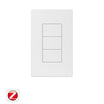
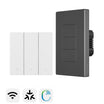
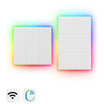
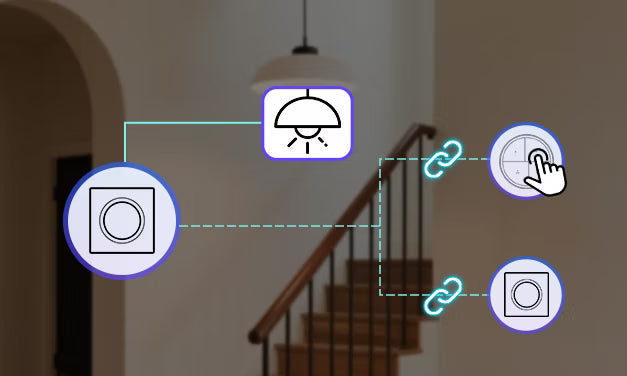
Se utilizar um interruptor da série SONOFF Fusion, poderá perguntar-se como obter um controlo bidirecional. Este guia apresenta soluções inteligentes de controlo bidirecional para interruptores Fusion com diferentes protocolos de comunicação. Através de cenários inteligentes, estas soluções permitem o controlo a partir de vários locais sem cablagem adicional — flexível, conveniente e altamente prática.
Solução 1 — Ligação de cenários inteligentes
Na plataforma eWeLink ou Home Assistant, os botões sem fios Zigbee (por exemplo, SNZB-01P / SNZB-01M) podem ser utilizados como acionadores de cenários através da configuração de cenários inteligentes ou de automações. Ligam-se aos interruptores da série Fusion para executar ações de ligar/desligar, permitindo um controlo bidirecional sem fios.

Dispositivos necessários
✅1 × interruptor da série Fusion (por exemplo, Orb-MW1 / Orb-MW2 / Orb-ZBW1 / Orb-ZBW1L / Orb-ZBW2 / Orb-ZBW2L)
✅1 × botão sem fios Zigbee (por exemplo, SNZB-01P / SNZB-01M)
|
SNZB-01P vs. SNZB-01M (Orb 4-In-1) |
||
|
Botão sem fios Zigbee |
SNZB-01P |
SNZB-01M (Orb 4-In-1) |
|
Número de botões |
1 botão |
4 botões |
|
Ações suportadas |
Pressão simples / Pressão dupla / Pressão prolongada |
Cada botão suporta pressão simples / dupla / tripla / prolongada |
|
Protocolo |
Zigbee |
Controlo remoto Zigbee e eWeLink |
|
Pilha |
CR2477 |
CR2477 |
|
Montagem |
Magnético / Adesivo / Parafuso |
Magnético / Adesivo / Parafuso |
|
Utilização principal |
Ativação simples de cenários |
Controlo centralizado de vários cenários |
✅1 × gateway Zigbee (por exemplo, SONOFF ZBBridge-P / ZBBridge-U / NSPanel Pro / iHost)
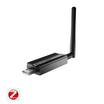
Nota: Se pretende adicionar dispositivos a um ambiente ZHA ou Z2M, também terá de ter um dongle Zigbee (por exemplo, SONOFF Dongle Plus MG24 / Dongle Max / ZBDongle-P/E / Dongle Lite MG21)
Emparelhamento e configuração da cena
Passo 1: Adicione dispositivos à APP
Adicione o botão sem fios Zigbee (SNZB-01P / SNZB-01M) e o interruptor Fusion à APP eWeLink ou à plataforma Home Assistant.
Passo 2: Crie uma cena de automação
- Definir acionador: Selecione «Dispositivo inteligente» → Escolha SNZB-01P ou SNZB-01M (para o SNZB-01M, selecione o botão pretendido) → Selecione o acionador (Pressão única / Dupla pressão / ...)
- Definir ação: Selecione «Dispositivo inteligente» → Escolha o interruptor Zigbee Fusion pretendido (para interruptores multicanal, selecione o canal pretendido) → Selecione a ação (Inverter)
- Guarde e ative a cena de automatização.
Passo 3: Verificar
Prima o botão sem fios Zigbee para acionar a cena. A luz ligada ao interruptor Fusion deverá ligar-se/desligar-se em conformidade. Tanto o interruptor de parede como o botão sem fios Zigbee podem controlar a mesma luz de forma sincronizada.
Solução 2 — Desativar o relé
O Interruptor A está ligado à carga, enquanto o Interruptor B tem o modo de desativação do relé ativado e funciona como acionador de cenas sem fios. Através da ligação de cenas inteligentes, uma pressão única no Interruptor B alterna o estado do Interruptor A, permitindo que dois dispositivos controlem a mesma luz.

Dispositivos necessários
✅ 2 × interruptores Fusion (por exemplo, Orb-MW1 / Orb-MW2 / Orb-ZBW1 / Orb-ZBW1L / Orb-ZBW2 / Orb-ZBW2L)
Nota:
- Para dispositivos Zigbee, é necessário um gateway Zigbee (por exemplo, SONOFF ZBBridge-P / ZBBridge-U / NSPanel Pro / iHost).
- Se pretender adicionar dispositivos a um ambiente ZHA ou Z2M, também é necessário o Zigbee Dongle (por exemplo, Dongle Plus MG24 / Dongle Max / ZBDongle-P/E / Dongle Lite MG21).
Passos de emparelhamento e configuração
Passo 1: Preparação da cablagem
- Interruptor A: Ligado à luz de carga.
- Interruptor B: Não está ligado a nenhuma carga; é utilizado exclusivamente como acionador de cenas.
Passo 2: Adicione dispositivos à APP e ative o modo de desativação do relé
Adicione ambos os interruptores Fusion à aplicação eWeLink. Para dispositivos Zigbee, também pode adicioná-los a uma plataforma Z2M ou ZHA e ativar o Modo de separação do relé.
Passo 3: Criar uma cena de automatização
- Definir acionador: Selecione "Dispositivo inteligente" → Escolha o "Interruptor B" (para interruptores com vários canais, selecione o canal-alvo) → Selecione o acionador (Premir uma vez).
- Definir ação: Selecione "Dispositivo inteligente" → Escolha o "Interruptor A" (para interruptores com vários canais, selecione o canal-alvo) → Selecione a ação (Inverter).
- Guarde e ative a cena de automatização.
Passo 4: Verificar
Prima o Interruptor B para acionar a cena. A luz ligada ao Interruptor A deverá ligar-se/desligar-se em conformidade. Ambos os interruptores podem controlar a mesma luz de forma sincronizada.
Solução 3 — Ligação entre dispositivos (apenas para Home Assistant)
Nos ambientes ZHA (Zigbee Home Automation) ou Z2M (Zigbee2MQTT), o botão sem fios Zigbee, como dispositivo acionador, pode estabelecer uma relação de ligação com um interruptor Zigbee Fusion (como alvo). Isto permite a comunicação direta entre dispositivos e o controlo bidirecional sem fios.

Dispositivos necessários
✅ 1 × Botão sem fios Zigbee (por exemplo, SNZB-01P / SNZB-01M)
✅ 1 × Interruptor Zigbee da série Fusion (por exemplo, Orb-MW1 / Orb-ZBW2 / Orb-ZBW2L)
✅ 1 × Dongle Zigbee (por exemplo, SONOFF Dongle Plus MG24 / Dongle Max / ZBDongle-P/E / Dongle Lite MG21).
Emparelhamento e configuração da cena
Passo 1: Adicionar dispositivos ao gateway Zigbee
Adicione dispositivos através do ZBDongle ao ambiente ZHA ou Z2M.
Passo 2: Ligação
- No ZHA/Z2M, selecione o dispositivo acionador (por exemplo, SNZB-01M) e aceda à gestão de ligações.
- Selecione o dispositivo-alvo (por exemplo, um produto interruptor Zigbee) e especifique o Cluster (por exemplo, o Cluster Ligar/Desligar).
- Quando a ligação estiver concluída, premir o botão correspondente no dispositivo acionador controlará diretamente o dispositivo-alvo (Ligar / Desligar / Inverter).
Passo 3: Verificar
Prima o botão sem fios Zigbee para acionar a cena. A luz ligada ao interruptor Fusion deverá ligar-se/desligar-se em conformidade. Tanto o interruptor de parede como o botão sem fios Zigbee podem controlar a mesma luz de forma sincronizada.

Deixe um comentário
Todos os comentários são moderados antes de serem publicados.
Este site está protegido pela Política de privacidade da hCaptcha e da hCaptcha e aplicam-se os Termos de serviço das mesmas.