



Inleiding
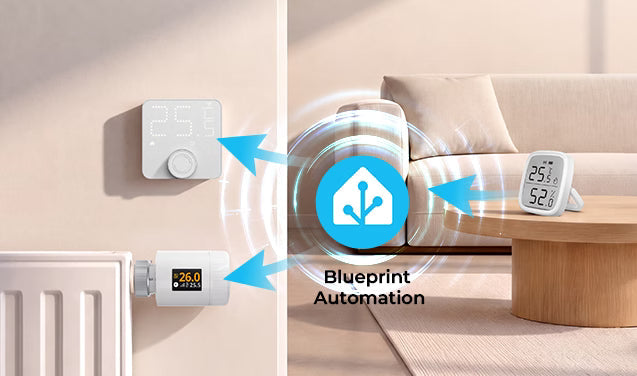
In deze tutorial wordt uitgelegd hoe je een externe temperatuursensor met SONOFF-thermostaatapparaten in Home Assistant gebruikt via een Home Assistant-blauwdruk. Voor verschillende thermostaatapparaten zijn verschillende blauwdruklinks nodig, dus zorg ervoor dat je de blauwdruk gebruikt die bij jouw apparaat past.
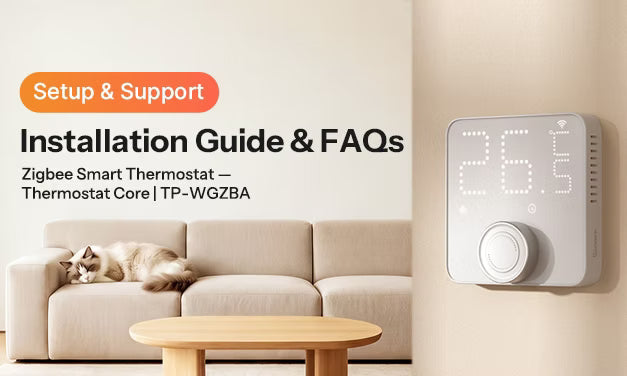
In de onderstaande stappen gebruiken we de TP-WGZBA -thermostaat als voorbeeld om te laten zien hoe je een externe temperatuursensor configureert met behulp van een blauwdruk.
Menunamen kunnen per versie van Home Assistant enigszins verschillen. Volg de opties die in jouw huidige Home Assistant-interface worden weergegeven.
|
Apparaat |
URL van de blauwdruk |
|
|
|
|
|
|
👉 Tip: Als je de externe temperatuursensor liever handmatig in Home Assistant configureert, volg dan onze stapsgewijze handleiding voor zowel ZHA als Zigbee2MQTT (Z2M): Een SONOFF TRV handmatig instellen met een externe temperatuursensor
Voordat je begint
Controleer vóór je begint of:
- De externe temperatuursensor is al toegevoegd aan Home Assistant en geeft de temperatuur correct weer.
- De thermostaat of het thermostaatpaneel is succesvol toegevoegd.
- Het apparaat is online.
Stap 1: De blauwdruk importeren
- Open Home Assistant.
- Ga naar Instellingen → Automatiseringen en scènes → Blauwdrukken.
- Klik rechtsonder op Blauwdruk importeren.

4. Plak de bijbehorende URL van de blauwdruk in het veld Adres van de blauwdruk .
- De volgende URL is de blauwdruk voor de SONOFF TP-WGZBA-thermostaat:

5. Nadat de blauwdruk succesvol is geïmporteerd, verschijnt deze in de lijst met blauwdrukken.

Opmerkingen:
- Als de blauwdruk niet kan worden geïmporteerd, controleer dan of de URL van de blauwdruk volledig en correct is gekopieerd.
- Als de blauwdruk na het importeren niet verschijnt, vernieuw je de pagina of start je Home Assistant opnieuw.
Stap 2: Een automatisering maken vanuit de blauwdruk
- Ga naar Instellingen → Automatiseringen en scènes → Automatiseringen.
- Klik op + Automatisering maken.
- Selecteer de blauwdruk voor de externe temperatuursensor die je zojuist hebt geïmporteerd.

4. Selecteer je thermostaatapparaat, zoals het TP-WGZBA-thermostaatpaneel.
5. Selecteer de bijbehorende externe temperatuursensor die je als externe temperatuurbron wilt gebruiken.

6. Geef de automatisering een naam, bijvoorbeeld: Externe temperatuur synchroniseren met TP-WGZBA.
7. Klik op Opslaan.
8. Zorg ervoor dat de automatisering is ingeschakeld.

Opmerkingen:
- Het thermostaatapparaat en de temperatuursensor moeten al aan Home Assistant zijn toegevoegd en online blijven.
- Als je de thermostaat of temperatuursensor niet kunt vinden, controleer dan of het apparaat correct is toegevoegd.
- Controleer na het opslaan van de automatisering of de status ingeschakeld is.
Stap 3: De externe temperatuursensor inschakelen in de apparaatinstellingen
Nadat je de automatisering hebt aangemaakt, moet je ook de externe temperatuurbron inschakelen op het thermostaatapparaat zelf.
Methode 1: ZHA
- Zoek je SONOFF TP-WGZBA-thermostaat.
- Zoek de schakelaar Externe temperatuursensor en schakel deze in.

Methode 2: Zigbee2MQTT
- Zoek je SONOFF TP-WGZBA-thermostaat .
- Open de pagina met apparaatinstellingen en zoek vervolgens Externe temperatuursensor en selecteer deze.

Opmerkingen:
- Schakel met ZHA de schakelaar voor de externe temperatuurbron in.
- Selecteer met Zigbee2MQTT de optie Externe temperatuurbron.
- Als het apparaat offline is, een bijna lege batterij heeft of een zwak signaal heeft, wordt de instelling mogelijk niet onmiddellijk toegepast.
- Als je de optie Externe temperatuursensor niet kunt vinden, controleer dan of je ZHA-/Zigbee2MQTT-versie en apparaatmodel dit ondersteunen.
Stap 4: Controleren of de configuratie werkt
Nadat je de bovenstaande stappen hebt voltooid, kun je de configuratie op de volgende manieren bevestigen:
- Zorg ervoor dat de automatisering is aangemaakt en ingeschakeld.
- Zorg ervoor dat de externe temperatuurbron is ingeschakeld of geselecteerd in de apparaatinstellingen.
- Wijzig de temperatuur die door de externe temperatuursensor wordt gemeld en controleer of de waarde in Home Assistant of op het apparaat wordt bijgewerkt.
- Bevestig dat de thermostaat de temperatuur van de externe temperatuursensor gebruikt voor de temperatuurregeling.
- Bevestig dat de temperatuur zowel op het apparaat als in Home Assistant correct wordt weergegeven.

Laat een reactie achter
Alle reacties worden gemodereerd voordat ze worden gepubliceerd.
Deze site wordt beschermd door hCaptcha en het privacybeleid en de servicevoorwaarden van hCaptcha zijn van toepassing.