









1. Local Setup of ZBBridge-U
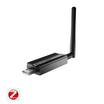
To manage the ZBBridge-U locally, power on the device and connect it to your home router using an Ethernet cable. Make sure that ZBBridge-U and Home Assistant are on the same local network.
Open your preferred web browser and visit the local web panel at: http://zbbridgeu.local/. Alternatively, you can access the panel using the IP address assigned by your router.
The local web interface is fully responsive and optimized for different devices, making it easy to access and manage from a smartphone or tablet.
When you enter the interface for the first time, you'll be guided to set the time zone and create a password for future logins.

ZBBridge-U Portal Overview
After signing in and completing the setup guide, you'll be taken to the Home page. On the left side, the main menu provides quick access to all key features and settings. The Home page highlights the core functions and displays the device synchronization status.
Devices are grouped into four categories based on how they are added:
- Zigbee
- eWeLink-Remote
- eWeLink Wi-Fi
- Home Assistant
For each category, you can see the total number of devices, how many are online, and how many have been synchronized via the Matter bridge.

2. Configure the MQTT Broker in Home Assistant
Ensure you have Home Assistant running on a server (mini PC, Raspberry Pi, Home Assistant Green, etc.). Enable MQTT configuration in Home Assistant and install the Mosquitto Broker add-on.
Create a username and password in the Mosquitto Broker configuration. These will be used when connecting ZBBridge-U to Home Assistant.


3. Add Zigbee Devices to ZBBridge-U
On the Home page, select Add Devices → Zigbee Devices to start pairing mode. Alternatively, enter the Zigbee page from the sidebar.

Once pairing mode is enabled, it remains active for 180 seconds. Put your Zigbee devices into pairing mode and place them close to ZBBridge-U for stable pairing. After devices are added, manage them from the device list.
When the router connected to ZBBridge-U has internet access, OTA firmware updates are supported for SONOFF Zigbee devices.

4. Sync Devices to Home Assistant
Go to the Home Assistant page in the ZBBridge-U interface and select Sync Zigbee Sub-devices to Home Assistant. Then configure the MQTT Broker connection.

MQTT Broker Settings
- Automatically scan for the Home Assistant IP address, or enter manually
- Port: Enter the normal MQTT port configured in Mosquitto Broker
- Username and password: Use the credentials created in Mosquitto Broker
- Encryption: Set to None by default, or adjust according to your broker configuration
Enable MQTT and save the settings. 
Once the configuration is complete, select the devices you want to sync from the list.
The synced devices will then appear in Home Assistant → MQTT configuration.


Alternative: Complete the Setup via eWeLink App
- Add ZBBridge-U to the eWeLink app and pair Zigbee sub-devices
- Configure the MQTT Broker in Home Assistant and create username/password
- In eWeLink, go to ZBBridge-U → Device Settings → Home Assistant → Sync Zigbee Sub-devices to Home Assistant, configure the MQTT settings as described earlier, then enable MQTT.

- Select the devices you want to sync. The synced devices will appear under the MQTT configuration of Home Assistant.



Leave a comment
All comments are moderated before being published.
This site is protected by hCaptcha and the hCaptcha Privacy Policy and Terms of Service apply.